
WordPress Content Revision Control 2025: Expert Guide to Managing Post Revisions
 jackober
April 4, 2025 6:48 pm
.
22 min read
jackober
April 4, 2025 6:48 pm
.
22 min read
As a WordPress developer at Jackober, I’ve seen firsthand how content revisions can either save the day or create significant database bloat. WordPress’s revision system is a powerful feature that automatically tracks changes to your content, allowing you to restore previous versions when needed. However, without proper management, these revisions can accumulate rapidly, potentially impacting your site’s performance and database size.
In this expert guide, I’ll explore everything you need to know about WordPress content revision control—from understanding how the system works to implementing advanced management strategies. Whether you’re running a small blog, a busy editorial website, or an enterprise-level WordPress installation, you’ll learn how to optimize the revision system for your specific needs.
Understanding WordPress Content Revisions
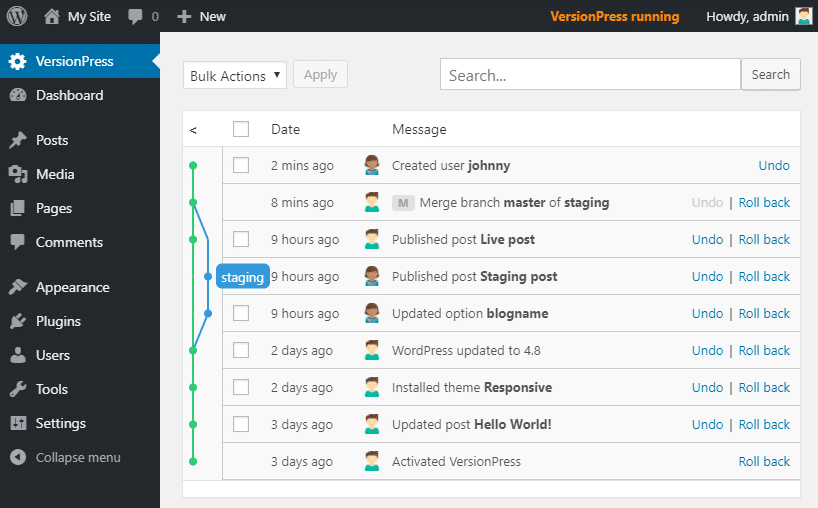
Before diving into management strategies, let’s establish a clear understanding of WordPress’s revision system:
What Are WordPress Revisions?
WordPress revisions are copies of your content that are automatically saved at regular intervals and when you manually save your work. Each revision represents a snapshot of your post or page at a specific point in time, storing:
- The content as it existed at that moment
- The author who made the changes
- The date and time of the revision
- Meta information about the revision
The revision system serves several important purposes:
- Content Recovery: Restore previous versions if you make unwanted changes
- Change Tracking: See what modifications were made and by whom
- Collaborative Editing: Maintain a history when multiple authors work on content
- Error Protection: Recover from accidental deletions or changes
- Content Comparison: View differences between versions
How WordPress Stores Revisions
Understanding the technical implementation helps explain why revision management matters:
Database Storage
WordPress stores revisions as separate posts in the wp_posts table with:
post_typeset to “revision”post_parentpointing to the original post IDpost_nameformatted as{parent-post-id}-revision-v1,{parent-post-id}-revision-v2, etc.- Same content structure as regular posts
Each revision takes up space in your database similar to a regular post, including entries in related tables like wp_postmeta for any custom fields.
Autosave Mechanism
WordPress automatically creates revisions through two mechanisms:
- Regular Autosaves: Occur every 60 seconds while editing (by default)
- Manual Saves: Created whenever you click “Update” or “Publish”
The autosave interval can be customized using the AUTOSAVE_INTERVAL constant in your wp-config.php file.
The Impact of Unlimited Revisions
By default, WordPress stores an unlimited number of revisions for each post or page. While this provides comprehensive version history, it can lead to several issues:
- Database Bloat: A post with 100 revisions can take up 100 times more space than necessary
- Backup Size Increase: Larger databases require more storage and longer backup times
- Query Performance: Some operations may slow down with many revision records
- Database Maintenance Challenges: More complex optimization and cleanup
- Hosting Resource Usage: Potentially higher costs for database storage
For busy sites using Best Magazine WordPress Theme options or running an active WordPress Multisite Setup Guide network, these issues can compound significantly.
Configuring WordPress Revision Settings
Now that we understand how revisions work, let’s explore configuration options:
Limiting the Number of Revisions
The most common approach to revision control is limiting how many versions WordPress keeps:
Using wp-config.php
Add this line to your wp-config.php file to limit revisions:
define('WP_POST_REVISIONS', 5);
This tells WordPress to keep only the 5 most recent revisions per post. You can adjust the number to match your needs:
- 3-5 revisions: Good for most blogs and small websites
- 10-15 revisions: Suitable for active content sites with frequent updates
- 20+ revisions: May be necessary for collaborative publishing platforms
Disabling Revisions Completely
If you want to disable revisions entirely:
define('WP_POST_REVISIONS', false);
However, I generally don’t recommend this approach as it eliminates an important safety net for content recovery.
Setting Revisions to -1 (Unlimited)
To explicitly set unlimited revisions (the default behavior):
define('WP_POST_REVISIONS', -1);
Adjusting Autosave Interval
You can also control how frequently WordPress creates autosaves:
define('AUTOSAVE_INTERVAL', 120); // Autosave every 120 seconds
The default is 60 seconds, but you might consider:
- 90-120 seconds: Reduces revision frequency while maintaining safety
- 180-300 seconds: Significantly reduces autosaves for less critical content
- 30 seconds: Increases protection for very important content
Post Type-Specific Revision Control
WordPress doesn’t natively support different revision settings for different post types, but we can implement this with custom code:
function custom_revision_settings($num, $post) {
    // Set different revision limits based on post type
    if ($post->post_type == 'post') {
        return 5; // 5 revisions for regular posts
    } elseif ($post->post_type == 'page') {
        return 10; // 10 revisions for pages
    } elseif ($post->post_type == 'product') {
        return 3; // 3 revisions for WooCommerce products
    }

    // Default to global setting
    return $num;
}
add_filter('wp_revisions_to_keep', 'custom_revision_settings', 10, 2);
This is particularly useful for e-commerce sites built with How to create an online store with WordPress where product posts might need different handling than blog content.
Managing Existing Revisions
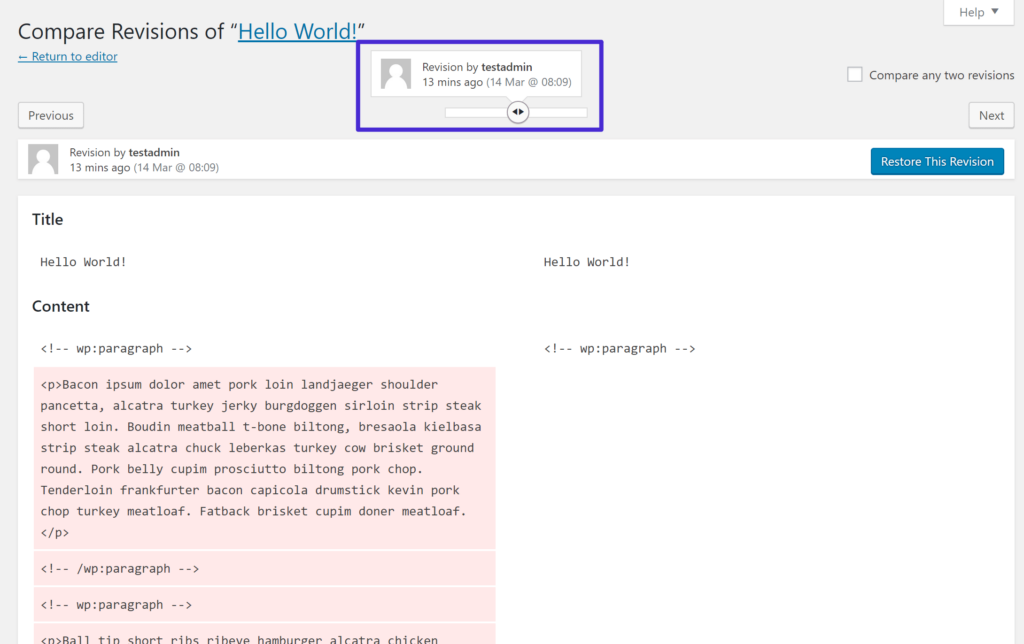
Configuration controls future revisions, but what about existing ones?
Manually Deleting Revisions
You can delete revisions one by one from the post editor:
- Open a post or page for editing
- Click the “Revisions” link in the Publish meta box
- Browse through revisions
- Delete specific unwanted revisions
This approach is practical for individual posts but becomes unwieldy for sites with thousands of revisions.
Database Cleanup via phpMyAdmin
For more direct database management:
- Access phpMyAdmin through your hosting control panel
- Select your WordPress database
- Run a SQL query to identify revisions:
SELECT * FROM wp_posts WHERE post_type = 'revision';
- Delete revisions with:
DELETE FROM wp_posts WHERE post_type = 'revision';
Warning: Always How to Backup WordPress Site before direct database manipulation. A mistake here could damage your content.
Using WP-CLI for Revision Cleanup
If you have command-line access, WP-CLI offers efficient revision management:
# Count revisions
wp post list --post_type=revision --format=count

# Delete all revisions
wp post delete $(wp post list --post_type=revision --format=ids)

# Delete revisions older than 30 days
wp post delete $(wp post list --post_type=revision --date_query='before:30 days ago' --format=ids)
WP-CLI is particularly valuable for WordPress Multisite Setup Guide networks where you need to manage revisions across multiple sites.
Revision Control Plugins
Several plugins can simplify revision management:
1. Revision Control
Key Features:
- Set global revision limits
- Configure post type-specific limits
- Delete existing revisions
- User-friendly interface
- Bulk revision management
Pros:
- Simple, intuitive interface
- No coding required
- Clear visualization of revision settings
- Compatible with most WordPress setups
Cons:
- Hasn’t been updated recently
- May have compatibility issues with newest WordPress versions
2. WP Revisions Control
Key Features:
- Global revision limits
- Bulk revision cleanup
- Database optimization
- Revision statistics
- Scheduled cleanup options
Pros:
- Active development and updates
- Performance-focused approach
- Detailed reporting on space saved
- Compatible with popular caching plugins
Cons:
- Fewer customization options than some alternatives
- Limited post type-specific controls
3. Advanced Post Revisions
Key Features:
- Granular revision control per post type
- User role-based revision settings
- Revision cleanup scheduling
- Detailed revision reporting
- Selective revision deletion
Pros:
- Most comprehensive feature set
- Fine-grained control options
- Good for multi-author sites
- Works well with custom post types
Cons:
- More complex interface
- Might be overkill for simple sites
- Some features limited to premium version
4. Database Cleanup Plugins
General database optimization plugins often include revision management:
- WP-Optimize: Includes revision cleanup along with other database optimizations
- WP Sweep: Efficiently cleans revisions and other database tables
- Advanced Database Cleaner: Comprehensive database management including revisions
These can be good options if you want broader database maintenance beyond just revisions.
Best Practices for Revision Management
Based on my experience with numerous WordPress sites, here are practical recommendations:
Finding the Right Balance
Revision control requires balancing safety against performance:
- Content Value Assessment: How critical is perfect version history?
- High-value content (legal pages, core product descriptions) might justify more revisions
- Frequent content updates might benefit from fewer revisions per post but more frequent backups
- Editing Workflow Analysis: How do your authors work?
- Collaborative teams might need more revisions for tracking changes
- Single authors might need fewer revisions
- Technical Environment Consideration: What are your hosting constraints?
- Shared hosting with limited resources might require stricter revision limits
- Managed WordPress hosting like Flywheel WordPress Hosting often handles database optimization for you
Recommended Settings by Site Type
Different WordPress implementations have different optimal settings:
Personal Blogs
- Revision Limit: 3-5 revisions
- Autosave Interval: 90-120 seconds
- Cleanup Schedule: Monthly
Business Websites
- Revision Limit: 5-10 revisions
- Autosave Interval: 60 seconds
- Cleanup Schedule: Quarterly
- Special Handling: More revisions for critical pages
News/Magazine Sites
- Revision Limit: 10-15 revisions
- Autosave Interval: 60 seconds
- Cleanup Schedule: Weekly or monthly
- Special Handling: Post type-specific settings
E-commerce Stores
- Revision Limit: 3-5 for products, 10 for pages
- Autosave Interval: 120 seconds
- Cleanup Schedule: Monthly
- Special Handling: Fewer revisions for products, more for core pages
Enterprise/Intranet Sites
For sites built following how to build a powerful intranet with WordPress:
- Revision Limit: 15-20 revisions
- Autosave Interval: 60 seconds
- Cleanup Schedule: Quarterly
- Special Handling: User role-based revision privileges
Integrating with Backup Strategy
Revisions and backups work together for content protection:
- Inverse Relationship: More frequent backups can justify fewer stored revisions
- Cleanup Before Backup: Schedule revision cleanup before major backups
- Retention Policy Alignment: Match revision retention with backup retention periods
- Critical Content Identification: Extra protection for your most important pages
For comprehensive protection, follow our guide on How to Backup WordPress Site.
Advanced Revision Control Techniques
For developers and power users, here are more sophisticated approaches:
Custom Revision Control Functions
Implement advanced revision logic with custom code:
/**
 * Advanced revision control based on post age and type
 */
function advanced_revision_control($num, $post) {
    // Get post age in days
    $post_age = floor((time() - strtotime($post->post_date)) / (60 * 60 * 24));

    // Recent posts get more revisions
    if ($post_age < 30) {
        // Posts less than 30 days old
        if ($post->post_type == 'post') {
            return 10;
        } elseif ($post->post_type == 'page') {
            return 15;
        }
    } else {
        // Older posts get fewer revisions
        if ($post->post_type == 'post') {
            return 3;
        } elseif ($post->post_type == 'page') {
            return 5;
        }
    }

    // Default
    return 5;
}
add_filter('wp_revisions_to_keep', 'advanced_revision_control', 10, 2);
This example varies revision limits based on both post type and age, keeping more revisions for newer content.
User Role-Based Revision Control
Control revisions based on who’s editing:
/**
 * Set revision limits based on user role
 */
function user_role_based_revisions($num, $post) {
    $user = wp_get_current_user();

    // Admins and editors get more revisions
    if (in_array('administrator', $user->roles) || in_array('editor', $user->roles)) {
        return 15;
    }

    // Authors get medium number of revisions
    if (in_array('author', $user->roles)) {
        return 8;
    }

    // Contributors get fewer revisions
    if (in_array('contributor', $user->roles)) {
        return 3;
    }

    // Default
    return 5;
}
add_filter('wp_revisions_to_keep', 'user_role_based_revisions', 10, 2);
This works particularly well with the WordPress User Role Editor Plugin to create a comprehensive user permission system.
Custom Admin Interface for Revision Management
Create a dedicated admin page for revision control:
/**
 * Register admin menu for revision management
 */
function register_revision_management_page() {
    add_management_page(
        'Revision Management',
        'Revision Control',
        'manage_options',
        'revision-management',
        'render_revision_management_page'
    );
}
add_action('admin_menu', 'register_revision_management_page');

/**
 * Render the revision management admin page
 */
function render_revision_management_page() {
    // Get revision statistics
    global $wpdb;
    $revision_count = $wpdb->get_var("SELECT COUNT(*) FROM $wpdb->posts WHERE post_type = 'revision'");
    $revision_size = $wpdb->get_var("SELECT SUM(LENGTH(post_content)) FROM $wpdb->posts WHERE post_type = 'revision'");
    $revision_size = round($revision_size / (1024 * 1024), 2); // Convert to MB

    // Admin page HTML
    ?>
    <div class="wrap">
        <h1>WordPress Revision Management</h1>

        <div class="revision-stats">
            <p>Total revisions: <strong><?php echo number_format($revision_count); ?></strong></p>
            <p>Estimated space used: <strong><?php echo $revision_size; ?> MB</strong></p>
        </div>

        <form method="post" action="">
            <?php wp_nonce_field('revision_cleanup', 'revision_nonce'); ?>

            <h2>Cleanup Options</h2>
            <p>
                <label>
                    <input type="radio" name="cleanup_type" value="all" />
                    Delete all revisions
                </label>
            </p>
            <p>
                <label>
                    <input type="radio" name="cleanup_type" value="keep_recent" checked="checked" />
                    Keep recent revisions only
                </label>
                <select name="keep_count">
                    <option value="3">Keep 3 most recent per post</option>
                    <option value="5" selected="selected">Keep 5 most recent per post</option>
                    <option value="10">Keep 10 most recent per post</option>
                </select>
            </p>
            <p>
                <label>
                    <input type="radio" name="cleanup_type" value="by_date" />
                    Delete revisions older than
                </label>
                <select name="date_limit">
                    <option value="7">7 days</option>
                    <option value="30" selected="selected">30 days</option>
                    <option value="90">90 days</option>
                    <option value="180">180 days</option>
                </select>
            </p>

            <p class="submit">
                <input type="submit" name="run_cleanup" class="button button-primary" value="Run Cleanup" />
            </p>
        </form>
    </div>
    <?php

    // Process cleanup if submitted
    if (isset($_POST['run_cleanup']) && check_admin_referer('revision_cleanup', 'revision_nonce')) {
        // Cleanup logic would go here
        // This would need proper implementation based on the selected options
    }
}
This creates a basic admin interface for managing revisions. For a complete implementation, you’d need to add the actual cleanup logic based on the selected options.
Performance Impact of Revisions
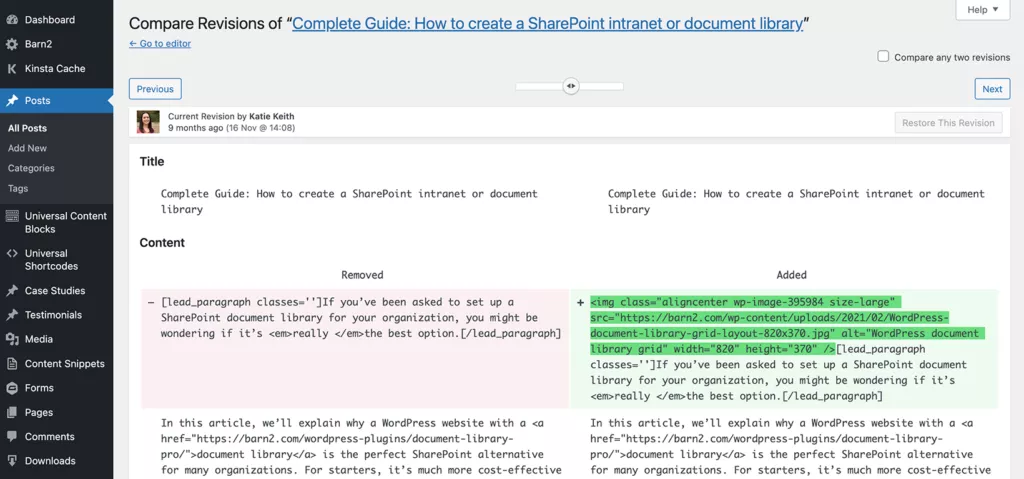
Understanding the technical impact helps make informed decisions:
Database Size Considerations
Revisions can significantly increase database size:
- Content Length Factor: Longer content creates larger revisions
- Media Handling: Revisions don’t duplicate media files but do store references
- Custom Fields Impact: All post meta is duplicated in revisions
- Cumulative Growth: The impact compounds over time
- Backup Time Increase: Larger databases take longer to back up
Query Performance Effects
Revisions can affect WordPress performance in several ways:
- Post Query Exclusion: WordPress automatically excludes revisions from normal queries, minimizing impact
- Admin Dashboard Load: Many revisions can slow down the post editor
- Database Index Efficiency: Large revision tables may affect index performance
- Backup and Restore Time: More revisions mean longer backup/restore operations
- Search Functionality: Some search implementations may be affected by revision volume
Measuring Revision Impact
To assess the impact on your specific site:
- Database Size Analysis:
   SELECT
       SUM(LENGTH(post_content)) / 1024 / 1024 as size_mb
   FROM
       wp_posts
   WHERE
       post_type = 'revision';
- Revision Count per Post:
   SELECT
       post_parent,
       COUNT(*) as revision_count
   FROM
       wp_posts
   WHERE
       post_type = 'revision'
   GROUP BY
       post_parent
   ORDER BY
       revision_count DESC
   LIMIT 10;
- Performance Testing: Compare site speed before and after revision cleanup
For comprehensive performance analysis, follow our WordPress Page Speed Optimization guide.
Revision Control for Specific WordPress Implementations
Different WordPress setups have unique revision considerations:
E-commerce Sites
For online stores created with How to create an online store with WordPress:
- Product Revision Strategy: Products often need fewer revisions than content pages
- Critical Page Protection: Checkout and account pages may need more revision history
- WooCommerce Considerations: Product metadata handling in revisions
- Order Data Separation: Ensuring order information isn’t affected by revision cleanup
- Seasonal Content Planning: More revisions during high-update periods
Membership Sites
For sites using How to Create a Membership Site with WordPress:
- Protected Content Revisions: Special handling for member-only content
- Lesson and Course Material: Educational content may need longer revision history
- Membership Level Pages: Critical pages that affect revenue should have more revisions
- Regular Content Updates: Strategy for frequently updated member resources
- User-Generated Content: Handling revisions for member-created content
Multilingual Websites
For sites using Best WordPress Translation Plugins:
- Translation Synchronization: How revisions work with translated content
- Language-Specific Settings: Different revision needs for different languages
- Translation Workflow Integration: Revisions as part of the translation process
- Plugin Compatibility: Ensuring revision controls work with translation plugins
- Database Impact Multiplication: Revisions × Languages can quickly add up
Multi-Author Publications
For magazine and news sites:
- Editorial Workflow Integration: Revisions as part of the editing process
- Author-Based Settings: Different revision limits based on author experience
- Content Type Variation: News vs. evergreen content revision strategies
- Archival Policies: Long-term revision retention for journalistic purposes
- Legal Compliance: Revision requirements for corrections and updates
Security Implications of Revisions
Revision management also affects WordPress security:
Privacy Considerations
Revisions can contain sensitive information:
- Deleted Confidential Content: Removed information may still exist in revisions
- Personal Data in Revisions: GDPR and privacy law implications
- Password and Credential Exposure: Accidentally pasted sensitive data
- Draft Information Leakage: Unpublished information in revision history
- Revision Access Control: Who can view revision history
Follow WordPress Security Best Practices to protect all content, including revisions.
Revision-Related Vulnerabilities
Potential security issues to be aware of:
- Unauthorized Revision Access: Ensuring proper permissions
- Revision Data Exposure: Preventing direct database access
- Large Revision Exploitation: DoS risks from excessive revisions
- Revision Cleanup Script Security: Ensuring safe cleanup processes
- Database Backup Protection: Securing backups containing all revisions
Content Workflow Integration
Revisions play an important role in content management workflows:
Editorial Process Integration
Leverage revisions for better content creation:
- Draft Management: Using revisions for content development stages
- Editor Review Process: Comparing changes during editing
- Approval Workflows: Revision history for content approval chains
- Content Scheduling: Managing revisions for scheduled updates
- Version Tracking: Maintaining publication history
Collaborative Editing Best Practices
For teams working on shared content:
- Change Documentation: Using revision notes for communication
- Edit Tracking: Identifying who made specific changes
- Conflict Resolution: Managing simultaneous edits
- Feedback Implementation: Tracking how feedback is incorporated
- Quality Control: Maintaining standards through revision review
Content Governance and Compliance
For regulated industries and formal organizations:
- Audit Trail Maintenance: Keeping revision history for compliance
- Content Approval Documentation: Tracking sign-offs through revisions
- Regulatory Requirements: Meeting industry-specific revision policies
- Corporate Policy Enforcement: Ensuring content follows guidelines
- Legal Protection: Maintaining evidence of content evolution
Case Studies: Real-World Revision Management
Let’s examine some actual revision management scenarios:
Case Study 1: High-Volume News Site
Site Profile: News website with 50+ articles published daily
Challenge: Database grew to 5GB with over 100,000 revisions after one year
Solution Implemented:
- Limited revisions to 5 per post
- Implemented 60-day revision cleanup policy
- Created custom revision controls for different content categories
- Integrated with editorial workflow system
- Set up automated weekly revision cleanup
Results:
- 70% reduction in database size
- Significantly improved backup and restore times
- Maintained sufficient revision history for editorial needs
- Better performance in WordPress admin area
- No negative impact on content quality or recovery options
Key Takeaway: Even high-volume publishing sites can benefit from reasonable revision limits when paired with good workflow processes.
Case Study 2: E-commerce Product Catalog
Site Profile: Online store with 3,000+ products and frequent updates
Challenge: Product updates generated excessive revisions, slowing down admin operations
Solution Implemented:
- Different revision settings by post type (3 for products, 10 for pages)
- Implemented pre-backup revision cleanup
- Created custom UI for product managers to view critical revision history
- Optimized database with regular cleanup
- Enhanced backup strategy to compensate for fewer revisions
Results:
- Improved product management experience
- 45% reduction in database size
- Faster product updates and imports
- Maintained critical revision history where needed
- Better overall site performance
Key Takeaway: Post type-specific revision strategies can balance performance with content protection needs.
Case Study 3: Membership Learning Platform
Site Profile: Educational site with premium courses and regular content updates
Challenge: Course content needed extensive revision history while maintaining performance
Solution Implemented:
- Tiered revision strategy (more for courses, fewer for marketing pages)
- User role-based revision controls
- Integration with learning management system
- Advanced backup strategy for course content
- Custom admin interface for content team
Results:
- Protected critical course content history
- Improved content update workflow
- Balanced database size with revision needs
- Enhanced recovery options for premium content
- Positive feedback from content creators
Key Takeaway: Aligning revision strategy with content value creates an efficient system that protects what matters most.
Future of WordPress Revisions
Looking ahead to how revision management might evolve:
WordPress Core Development
Potential changes coming to WordPress revision handling:
- Block Editor Integration: More granular revision tracking at the block level
- Improved Diff Visualization: Better ways to compare changes
- Revision Management UI: More built-in controls in future WordPress versions
- Performance Optimizations: More efficient revision storage
- API Enhancements: Better programmatic revision access
Emerging Best Practices
Evolving approaches to revision management:
- Content Lifecycle Management: Revisions as part of content lifespan
- AI-Assisted Revision Cleanup: Smart identification of important revisions
- Integrated Backup Systems: Closer connection between revisions and backups
- Distributed Revision Storage: Alternative storage methods for revision history
- Cross-Platform Revision Systems: Integration with external content systems
Revision Management in Headless WordPress
For sites using Headless CMS vs WordPress approaches:
- API-Based Revision Access: How front-end applications interact with revisions
- Revision Storage Strategies: Optimizing for headless architectures
- Client-Side Revision Interfaces: New ways to visualize and manage changes
- Revision Webhooks: Triggering external systems on content changes
- Decoupled Revision Management: Separating revision storage from core content
Conclusion: Building Your Revision Management Strategy
WordPress content revisions provide an invaluable safety net and collaboration tool when managed properly. By implementing a thoughtful revision control strategy, you can maintain the benefits of comprehensive content history while avoiding the performance penalties of excessive revision storage.
The right approach depends on your specific WordPress implementation, content types, editing workflow, and technical environment. Consider these key factors when developing your strategy:
- Content Value and Volatility: How critical and frequently updated is your content?
- Technical Environment: What are your hosting resources and performance requirements?
- Team Workflow: How do your content creators collaborate and edit?
- Compliance Requirements: Do you have any regulatory needs for content history?
- Backup Integration: How does your revision strategy complement your backup approach?
Remember that revision control isn’t a set-it-and-forget-it task—it requires ongoing monitoring and adjustment as your site grows and evolves. Regular database maintenance, including revision cleanup, should be part of your routine WordPress housekeeping.
For assistance with implementing advanced revision control strategies or other WordPress optimizations, our team at Jackober specializes in WordPress performance and content management. As a WordPress Expert for Hire, I can help you develop a revision management approach that perfectly balances performance, security, and content protection.
FAQ: WordPress Content Revision Control
Q: Will limiting revisions affect my ability to recover from mistakes?
A: With a reasonable revision limit (5-10 revisions), you’ll still maintain plenty of recovery options for recent changes. Most content recovery needs happen within the most recent few revisions. For additional protection, implement a comprehensive How to Backup WordPress Site strategy alongside your revision limits. The key is finding the right balance—unlimited revisions create database bloat without necessarily providing significantly better recovery options. For critical content, consider using staging environments through Best WordPress Staging Plugins to test major changes before applying them to your live site.
Q: Do revisions slow down my WordPress site for visitors?
A: Revisions typically have minimal impact on frontend performance because WordPress automatically excludes revisions from standard content queries. However, they can affect backend performance, database size, and backup processes. To ensure optimal frontend performance regardless of revisions, implement proper caching with Best WordPress Cache Plugins and follow general WordPress Page Speed Optimization best practices. If you’re on shared hosting with limited resources, controlling revisions becomes more important for overall site health and performance.
Q: What happens to revisions when I migrate my WordPress site?
A: Most migration processes, including those described in How to Migrate WordPress Site to New Host, will transfer all revisions unless you specifically exclude them. This can significantly increase migration time and complexity for sites with many revisions. Consider cleaning up unnecessary revisions before migration to streamline the process. Some migration tools offer options to exclude revisions during transfer. If you’re moving to a new host, migration can be an excellent opportunity to implement a fresh revision control strategy on your new server.
Q: How do page builders interact with the WordPress revision system?
A: Page builders like those covered in Best WordPress Page Builders generally work with WordPress’s native revision system, but they can generate larger revisions due to the complex data they store. Each time you save a page builder layout, a revision containing all the builder’s data is created. This can lead to significantly larger revisions than standard content. Some page builders also implement their own revision or history features that work alongside WordPress revisions. If you use page builders extensively, consider implementing stricter revision limits to manage database size.
Q: Can I restore media files from revisions?
A: No, WordPress revisions only store post content, not media attachments. If you replace or modify an image, the original is not preserved in revisions. For media file versioning, you need a separate media backup strategy or a specialized plugin that tracks media changes. Implement proper How to Optimize Images for WordPress practices and maintain image backups separately from your revision system. Some advanced digital asset management plugins can provide versioning for media files, but this functionality isn’t part of WordPress’s core revision system.
Q: Do revisions affect WordPress multisite installations differently?
A: Yes, in WordPress Multisite Setup Guide implementations, revisions can have a compounded impact because each site in the network generates its own revisions. The cumulative effect can lead to very large databases. In multisite environments, consider: 1) Network-wide revision limits through wp-config.php, 2) Site-specific limits where appropriate, 3) Regular network-wide revision cleanup, and 4) Database optimization practices specific to multisite. Large multisite networks may benefit from more aggressive revision management than single-site installations.
Q: How do revisions work with custom post types?
A: By default, WordPress enables revisions for all custom post types that support the ‘editor’ feature. However, you can control this when registering custom post types by setting ‘supports’ => array(‘revisions’) or excluding ‘revisions’ from the supports array. For existing custom post types, you can use the custom code examples provided earlier in this article to implement post type-specific revision limits. This is particularly
Managing Existing RevisionsPerformance Impact of RevisionsRevision Control for Specific WordPress Implementations
Jackober is a seasoned WordPress expert and digital strategist with a passion for empowering website owners. With years of hands-on experience in web development, SEO, and online security, Jackober delivers reliable, practical insights to help you build, secure, and optimize your WordPress site with ease.
You might also like