
As a WordPress developer and SEO specialist at Jackober, I’ve implemented numerous WordPress Multisite networks for clients ranging from educational institutions and corporate intranets to franchise businesses and publishing networks. WordPress Multisite is a powerful feature that allows you to run multiple websites from a single WordPress installation, sharing themes, plugins, and users while maintaining separate content.
In this tutorial, I’ll walk you through everything you need to know about setting up and managing a WordPress Multisite network—from initial configuration to advanced management techniques. Whether you’re looking to create a network of blogs, manage multiple client sites, or build a complex organization website, you’ll find actionable steps and expert insights to successfully implement WordPress Multisite.
Understanding WordPress Multisite: Is It Right for You?
Before diving into the technical setup, let’s clarify what WordPress Multisite is and whether it’s the right solution for your needs.
What is WordPress Multisite?
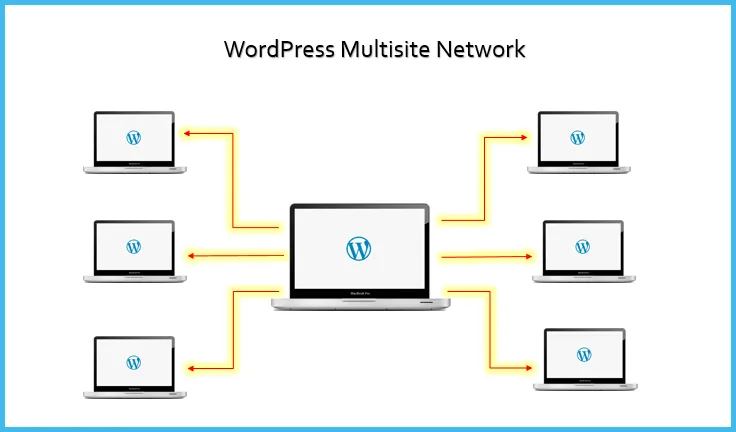
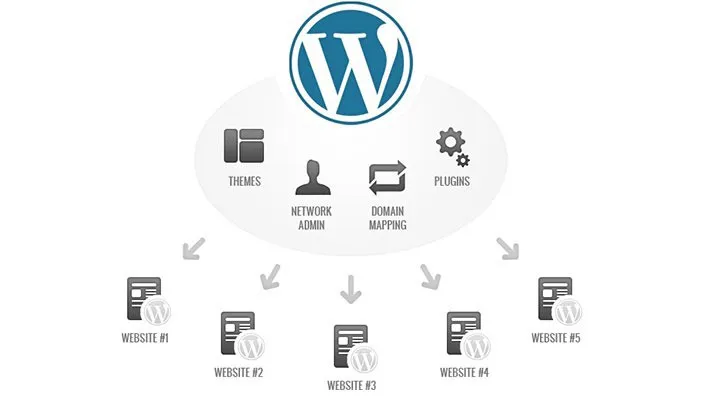
WordPress Multisite is a feature that allows you to create and manage a network of websites from a single WordPress installation. With Multisite enabled, you can:
- Run multiple websites using the same WordPress core files
- Manage all sites from a central dashboard
- Share users, themes, and plugins across the network
- Allow users to create their own sites (optional)
- Apply network-wide settings and policies
The network consists of a main site (the original WordPress installation) and subsites (additional websites in the network). All sites share the same database, but each has its own tables for content, settings, and metadata.
When to Use WordPress Multisite
Multisite is ideal for these scenarios:
- Educational Institutions: Universities with department websites or faculty blogs
- Corporate Websites: Companies with multiple locations or divisions
- Publishing Networks: Media organizations with multiple publications
- Client Website Management: Agencies managing multiple client sites
- Franchise Businesses: Consistent websites for multiple franchise locations
- Community Platforms: Sites where users can create their own blogs or websites
- Multilingual Websites: Managing translations as separate sites
- Testing Environments: Creating development and staging instances
When NOT to Use WordPress Multisite
Multisite isn’t suitable for every situation:
- Unrelated Websites: Sites with completely different purposes or audiences
- Different Technical Requirements: Sites needing very different plugins or configurations
- High-Traffic Independent Sites: Performance may be better with separate installations
- Different Update Schedules: Sites requiring different WordPress core versions
- Limited Technical Resources: Multisite requires more advanced management skills
Multisite vs. Multiple WordPress Installations
Comparing the approaches:
Multisite Advantages:
- Centralized management of updates, users, themes, and plugins
- Reduced server resources with shared core files
- Consistent configurations across sites
- Simplified backup and maintenance
- User account sharing across sites
Separate Installations Advantages:
- Complete independence between sites
- Isolated performance and security
- Flexibility to use different WordPress versions
- No risk of network-wide issues affecting all sites
- Simpler initial setup
For a comparison with other website platforms, see our Webflow vs WordPress analysis, which includes multisite considerations.
Prerequisites for WordPress Multisite
Before setting up Multisite, ensure you have these essentials in place:
Hosting Requirements
Multisite has specific hosting needs:
- Sufficient Resources: More memory and processing power than single sites
- PHP Version: PHP 7.4+ recommended (check WordPress requirements for latest)
- MySQL/MariaDB: Version 5.6+ or MariaDB 10.1+ recommended
- Apache or Nginx: With proper rewrite module configuration
- WildCard SSL: For subdomain installations (optional)
For reliable Multisite hosting, consider managed WordPress providers like Flywheel WordPress Hosting, which offers specific Multisite support.
Domain and Subdomain Configuration
Prepare your domain setup:
- Primary Domain: Main domain for the network (e.g., example.com)
- DNS Access: Ability to configure DNS records
- Subdomain Wildcard: For subdomain-based networks (*.example.com)
- Subdirectory Planning: For path-based networks (example.com/site1)
WordPress doesn’t provide domains; you’ll need to purchase them separately. Learn more in our guide: Does WordPress give you a domain name?
Fresh WordPress Installation
Start with a clean WordPress setup:
- New Installation: Multisite works best on fresh installations
- No Active Plugins: Deactivate all plugins before enabling Multisite
- Default Theme: Use a default WordPress theme initially
- Updated Version: Use the latest WordPress version
Setting Up WordPress Multisite: Step-by-Step
Follow these steps to enable and configure WordPress Multisite:
Step 1: Backup Your WordPress Site
Before making any changes:
- Create a complete backup of your WordPress files
- Export your database
- Verify the backup is working properly
For detailed backup instructions, refer to our guide on How to Backup WordPress Site.
Step 2: Enable Multisite in wp-config.php
Add the Multisite constant to your configuration file:
- Access your WordPress site’s root directory
- Locate and edit the wp-config.php file
- Add the following line above the “That’s all, stop editing!” comment:
/* Multisite */
define('WP_ALLOW_MULTISITE', true);
- Save the changes and close the file
Step 3: Access the Network Setup Screen
After enabling the Multisite constant:
- Log in to your WordPress admin dashboard
- Go to Tools → Network Setup
- You’ll see the Network Setup screen with configuration options
Step 4: Choose Subdomains or Subdirectories
Select your preferred URL structure:
Subdomain Structure:
- Sites appear as: site1.example.com, site2.example.com
- Requires wildcard SSL and subdomain configuration
- More professional appearance
- Better for SEO as each site has its own domain
Subdirectory Structure:
- Sites appear as: example.com/site1, example.com/site2
- Simpler to set up
- Works with any hosting
- All sites share the main domain
Note: If your WordPress installation has been running for more than a month, you’ll only have the subdirectory option available.
Step 5: Configure Network Details
Enter the required information:
- Network Title: Name for your entire network
- Network Admin Email: Email address for the main administrator
- Click “Install” to proceed
Step 6: Update Configuration Files
WordPress will provide code snippets to add to your configuration files:
- wp-config.php Changes: Additional constants for Multisite
- .htaccess Changes: Rewrite rules for proper URL handling (Apache servers)
- nginx Configuration: If using Nginx, you’ll need specific server configuration
Follow the provided instructions exactly, copying and pasting the code into the specified files.
Example wp-config.php additions:
define('MULTISITE', true);
define('SUBDOMAIN_INSTALL', true); // 'false' for subdirectories
define('DOMAIN_CURRENT_SITE', 'example.com');
define('PATH_CURRENT_SITE', '/');
define('SITE_ID_CURRENT_SITE', 1);
define('BLOG_ID_CURRENT_SITE', 1);
Example .htaccess for subdomain installation:
RewriteEngine On
RewriteBase /
RewriteRule ^index\.php$ - [L]

# add a trailing slash to /wp-admin
RewriteRule ^wp-admin$ wp-admin/ [R=301,L]

RewriteCond %{REQUEST_FILENAME} -f [OR]
RewriteCond %{REQUEST_FILENAME} -d
RewriteRule ^ - [L]
RewriteRule ^(wp-(content|admin|includes).*) $1 [L]
RewriteRule ^(.*\.php)$ $1 [L]
RewriteRule . index.php [L]
Step 7: Log Back In and Verify
After updating the configuration files:
- Log out and log back in to WordPress
- You should now see “My Sites” in the top admin bar
- Go to My Sites → Network Admin to access the network dashboard
Congratulations! You now have a working WordPress Multisite network.
Managing Your WordPress Multisite Network
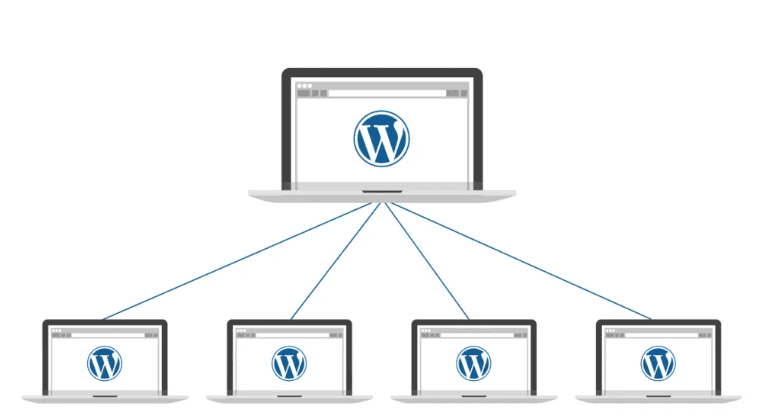
Now that your Multisite network is set up, let’s explore how to manage it effectively:
Network Admin Dashboard Overview
The Network Admin interface includes:
- Dashboard: Network overview and updates
- Sites: Manage all sites in the network
- Users: Manage all users across the network
- Themes: Control theme availability across sites
- Plugins: Manage plugins for the entire network
- Settings: Configure network-wide options
- Updates: Update WordPress core, themes, and plugins
Creating and Managing Sites
Add and manage sites in your network:
Adding a New Site
- Go to Network Admin → Sites → Add New
- Enter the site details:
- Site Address (URL): The subdomain or subdirectory
- Site Title: Name of the new site
- Admin Email: Email for the site administrator
- Click “Add Site”
Managing Existing Sites
From Network Admin → Sites, you can:
- Edit Site Details: Change URL, title, and other settings
- Deactivate/Archive: Temporarily disable sites
- Delete: Permanently remove sites
- Dashboard Access: Visit a site’s admin dashboard
- Themes: Manage site-specific theme access
- View Site: Visit the front end of any site
User Management in Multisite
Handle users across your network:
Creating Network Users
- Go to Network Admin → Users → Add New
- Enter user details (username, email, password)
- Click “Add User”
Assigning Users to Sites
- Go to Network Admin → Sites
- Click “Edit” for the desired site
- Go to the “Users” tab
- Add existing users and assign roles
Super Admin Role
Super Admins have network-wide privileges:
- Go to Network Admin → Users
- Find the user you want to promote
- Click “Edit”
- Check the “Grant this user super admin privileges” box
- Click “Update User”
Theme Management
Control themes across your network:
Network Activating Themes
- Go to Network Admin → Themes
- Find the theme you want to make available
- Click “Network Enable”
Network-enabled themes are available to all sites but must be activated individually by site admins unless you set a default theme.
Setting Network Default Theme
- Go to Network Admin → Settings → Network Settings
- Scroll to “New Site Settings”
- Select the default theme for new sites
- Click “Save Changes”
Site-Specific Theme Restrictions
To limit which sites can use specific themes:
- Use a plugin like “Multisite Theme Manager”
- Or develop custom functionality using the
allowed_themesoption
Plugin Management
Manage plugins across your network:
Network Activating Plugins
- Go to Network Admin → Plugins
- Find the plugin you want to activate network-wide
- Click “Network Activate”
Network-activated plugins are active on ALL sites and cannot be deactivated by site administrators.
Allowing Site Admins to Activate Plugins
By default, only Network Admins can install plugins. To change this:
- Go to Network Admin → Settings → Network Settings
- Check “Allow site administrators to add new plugins”
- Click “Save Changes”
Be cautious with this setting, as it can create security and compatibility issues.
Network Settings Configuration
Configure network-wide settings:
- Go to Network Admin → Settings → Network Settings
- Adjust options including:
- Operational Settings: Registration and file upload limits
- New Site Settings: Default site configuration
- Upload Settings: File types and size limits
- Language Settings: Default language
- Menu Settings: Network menu options
Advanced Multisite Configuration
Take your Multisite network to the next level with these advanced configurations:
Domain Mapping for Professional Site URLs
Map custom domains to network sites:
- DNS Configuration: Set up each domain’s A or CNAME records to point to your server
- SSL Configuration: Ensure How to add SSL to WordPress is implemented for all mapped domains
- Domain Mapping Plugin: Install a plugin like “WordPress MU Domain Mapping” or use a premium solution
- Add Domains: Map each domain to the appropriate network site
Multisite Caching Strategy
Optimize performance across your network:
- Network-Compatible Cache Plugin: Implement Best WordPress Cache Plugins that support Multisite
- Per-Site Cache Configuration: Allow individual cache settings where appropriate
- Object Caching: Implement Redis or Memcached for database query caching
- CDN Integration: Set up content delivery network for all sites
- Shared Resources Caching: Cache common elements across sites
For comprehensive optimization, follow our WordPress Page Speed Optimization guide with Multisite considerations.
Content Sharing Between Sites
Share content across your network:
- Multisite Content Copier: Use plugins to duplicate content between sites
- Post Syndication: Automatically share posts across sites
- Network Media Library: Share media files between sites
- Global Content Blocks: Create reusable content for all sites
- Shared Taxonomies: Implement network-wide categories or tags
User Management Enhancements
Improve user experience across sites:
- Single Sign-On: Allow users to access all sites with one login
- User Role Editor: Customize capabilities across the network
- Profile Synchronization: Keep user data consistent across sites
- Registration Controls: Customize the signup process
- User Switching: Easily test different user accounts
Multisite Security Best Practices
Protect your entire network:
- Network-Wide Security Plugin: Implement security across all sites
- User Permission Audits: Regularly review access levels
- Plugin Restrictions: Limit plugin activation rights
- Regular Updates: Keep core, themes, and plugins updated
- Network Backup Strategy: Backup the entire network regularly
For comprehensive security, follow our WordPress Security Best Practices with additional Multisite considerations.
Multisite Management Plugins and Tools
Enhance your Multisite capabilities with these essential tools:
Essential Multisite Management Plugins
Make administration easier with these plugins:
- Network Plugin Auditor: Track which plugins are active on which sites
- NS Cloner: Quickly duplicate sites within your network
- Multisite Enhancements: Adds helpful features to the network admin
- User Switching: Easily switch between user accounts
- WP Multi Network: Create multiple networks within one installation
Multisite Analytics and Monitoring
Track performance across your network:
- Network-Wide Analytics: Implement How to Add Google Analytics 4 to WordPress across all sites
- Uptime Monitoring: Monitor all sites for availability
- Performance Tracking: Measure load times across the network
- Security Scanning: Regular vulnerability checks
- User Activity Logs: Track administrative actions
Backup Solutions for Multisite
Protect your network data:
- Network-Compatible Backup Plugins: Use solutions that handle Multisite correctly
- Selective Restore Capabilities: Ability to restore individual sites
- Scheduled Automated Backups: Regular protection of all network data
- Off-Site Storage: Keep backups in multiple locations
- Backup Verification: Regular testing of restore functionality
Real-World Multisite Use Cases
Let’s explore practical applications of WordPress Multisite:
Educational Institution Implementation
Universities and schools can use Multisite for:
- Departmental Websites: Separate sites for each academic department
- Faculty Profiles: Individual sites for professors
- Student Organizations: Club and organization websites
- Course Websites: Dedicated sites for specific courses
- Research Projects: Sites for research initiatives and labs
Corporate Intranet and Extranet
Businesses can implement Multisite for:
- Department Intranets: Internal sites for different departments
- Project Collaboration: Team-specific workspaces
- Regional Offices: Sites for different locations
- Client Portals: Secure client-specific websites
- Knowledge Base: Internal documentation and resources
For corporate implementations, explore our guide on how to build a powerful intranet with WordPress, which includes Multisite strategies.
Franchise Business Network
Franchise operations benefit from Multisite through:
- Location-Specific Sites: Individual sites for each franchise location
- Centralized Brand Control: Consistent design and content templates
- Local Content Management: Location-specific content updates
- Shared Resources: Common assets across all locations
- Centralized Analytics: Network-wide performance tracking
Publishing Network
Media companies can utilize Multisite for:
- Multiple Publications: Separate sites for different magazines or newspapers
- Topic-Specific Microsites: Focused content areas
- Author Blogs: Individual sites for prominent writers
- Subscription Management: Centralized subscriber database
- Content Syndication: Sharing articles across publications
Publishers may also benefit from exploring Best Magazine WordPress Theme options compatible with Multisite.
Troubleshooting Common Multisite Issues
Even with careful setup, you may encounter these common challenges:
Upload Path and URL Issues
When media uploads aren’t working correctly:
- Check Permissions: Ensure proper folder permissions (755 for directories, 644 for files)
- Verify Paths: Confirm correct upload path configuration
- Storage Structure: Understand how Multisite stores uploads (sites/2/files/)
- Media Library Access: Troubleshoot media visibility across sites
- Plugin Conflicts: Check for plugins affecting media handling
Subdomain Configuration Problems
For issues with subdomain-based networks:
- DNS Configuration: Verify wildcard DNS record (*.example.com)
- SSL Certificate: Ensure wildcard SSL coverage
- Server Configuration: Check Apache/Nginx handling of subdomains
- Cookie Domain: Confirm proper cookie configuration
- Database URL References: Check for hardcoded URLs in the database
Plugin Compatibility Issues
When plugins don’t work properly in Multisite:
- Network Activation Problems: Some plugins aren’t designed for network activation
- Site-Specific Configuration: Plugins may need per-site setup
- Database Table Prefixes: Plugins must handle Multisite table naming
- User Permission Handling: Role and capability differences in Multisite
- Resource Limitations: Performance impact across multiple sites
For general WordPress troubleshooting, see our 15 Easy Fixes for Common WordPress Issues guide.
Database Size and Performance
Managing growth in Multisite databases:
- Regular Optimization: Schedule database maintenance
- Table Cleanup: Remove unnecessary data and revisions
- Caching Implementation: Reduce database queries
- Query Monitoring: Identify and optimize slow queries
- Database Scaling: Consider database splitting for very large networks
User Role and Permission Issues
When user access isn’t working as expected:
- Role Mapping: Understand how roles work across sites
- Super Admin Capabilities: Verify network administrator access
- Site-Specific Roles: Check individual site role assignments
- Plugin Conflicts: Identify plugins affecting user capabilities
- Database Integrity: Verify user tables are properly structured
Migrating to and from Multisite
Transitioning between single and Multisite installations:
Converting Single Site to Multisite
Beyond the initial setup process:
- Content Preservation: Ensure all content transfers to the main site
- Plugin Compatibility Check: Verify all plugins work with Multisite
- Theme Testing: Test themes in the Multisite environment
- User Migration: Transfer user accounts properly
- URL Structure Planning: Decide on subdomain or subdirectory approach
Migrating from Multisite to Single Sites
When you need to separate sites:
- Individual Site Export: Use tools to export each site’s content
- Database Separation: Extract site-specific database tables
- Media Migration: Transfer uploaded files to new locations
- User Management: Handle user account transitions
- URL Redirection: Manage traffic to new separate sites
Merging Multiple WordPress Sites into Multisite
Combining existing sites into one network:
- Content Import Strategy: Plan how to import existing content
- User Consolidation: Merge user databases without duplication
- URL Structure Changes: Handle URL changes and redirects
- Design Standardization: Decide on theme consistency approach
- Plugin Rationalization: Standardize plugin usage across sites
Scaling and Optimizing WordPress Multisite
As your network grows, consider these scaling strategies:
Server Configuration for Large Networks
Optimize your hosting environment:
- Resource Allocation: Sufficient CPU, memory, and storage
- Database Optimization: Server-level MySQL/MariaDB tuning
- PHP Configuration: Optimize PHP settings for Multisite
- Web Server Tuning: Apache or Nginx optimization
- Load Balancing: Multiple servers for very large networks
Consider managed hosting like Flywheel WordPress Hosting that includes Multisite-specific optimizations.
Content Delivery Network Integration
Improve performance with CDN:
- Network-Wide CDN Setup: Configure for all sites simultaneously
- Domain Mapping Considerations: Proper CDN configuration with custom domains
- Asset Consolidation: Shared resources across sites
- Image Optimization: Implement How to Optimize Images for WordPress network-wide
- Video Delivery: Optimize video content across sites
Database Optimization Techniques
Maintain database performance:
- Table Optimization: Regular optimization of all site tables
- Query Caching: Implement object caching for database queries
- Database Indexing: Proper index creation for common queries
- Transient Management: Control and clean WordPress transients
- Data Archiving: Move older content to archive tables when appropriate
Multisite with High-Traffic Considerations
Special considerations for popular networks:
- Caching Strategy: Multi-layered caching implementation
- Resource Isolation: Prevent one site from affecting others
- Traffic Analysis: Identify and optimize for traffic patterns
- Scheduled Tasks: Optimize WordPress cron for multiple sites
- Monitoring Systems: Real-time performance tracking
Special Multisite Configurations
Advanced setups for specific needs:
Multilingual Multisite Networks
Implement multiple languages:
- Language-Based Sites: Separate sites for each language
- Translation Management: Coordinate content across language sites
- Language Switcher: Easy navigation between language versions
- SEO Considerations: Proper hreflang tags and language indicators
- Content Synchronization: Keep translations updated
For language management, explore our Best WordPress Translation Plugins guide for Multisite-compatible options.
E-commerce Multisite Implementation
Selling products across multiple sites:
- WooCommerce Network Configuration: Proper setup for multiple stores
- Shared Product Catalog: Options for sharing products between sites
- Payment Gateway Coordination: Implement Payment Gateways for WordPress across sites
- Order Management: Centralized or distributed approaches
- Customer Account Handling: Single or separate customer databases
For e-commerce fundamentals, see our guide on How to create an online store with WordPress with Multisite considerations.
Membership and Subscription Networks
Implementing paid access across sites:
- Network-Wide Memberships: Access to multiple sites with one subscription
- Site-Specific Memberships: Separate membership for each site
- Centralized User Management: Unified member database
- Payment Processing: Handling subscriptions across sites
- Content Restriction: Consistent access control
For membership implementation, check our Best WordPress Membership Plugins guide for Multisite-compatible options.
Multisite with Headless WordPress
Modern decoupled architecture:
- API Management: Handling REST API across multiple sites
- Authentication Handling: Managing user access in headless setup
- Frontend Frameworks: Connecting React, Vue, or other frameworks
- Performance Considerations: Optimizing API responses
- Content Synchronization: Managing content across the network
For cutting-edge implementations, explore Headless CMS vs WordPress approaches in Multisite context.
Future-Proofing Your Multisite Network
Prepare for long-term success:
Update and Maintenance Strategy
Establish sustainable processes:
- Staged Updates: Test updates on development sites first
- Update Scheduling: Plan updates during low-traffic periods
- Compatibility Testing: Verify plugin and theme compatibility
- Rollback Plan: Prepare for reverting problematic updates
- Documentation: Maintain records of configurations and changes
For testing updates safely, consider Best WordPress Staging Plugins that support Multisite.
Monitoring and Analytics Implementation
Track network performance:
- Network-Wide Analytics: Implement consistent tracking
- Performance Monitoring: Watch for issues across all sites
- User Behavior Analysis: Understand how users navigate between sites
- Error Logging: Capture and address problems promptly
- Uptime Monitoring: Ensure all sites remain accessible
Documentation and Training
Prepare for team management:
- Network Administration Guide: Document management procedures
- Site Administrator Training: Prepare site-specific managers
- Content Creator Guidelines: Establish content standards
- Technical Documentation: Record server and configuration details
- Emergency Procedures: Document disaster recovery processes
Conclusion: Is WordPress Multisite Right for Your Project?
WordPress Multisite is a powerful solution for managing multiple websites under a single installation, but it’s not the right choice for every scenario. After implementing numerous Multisite networks for clients, I’ve found that success depends on matching this technology to appropriate use cases and implementing it with careful planning.
The ideal Multisite candidates are related websites that benefit from centralized management, shared resources, and consistent updates. Educational institutions, corporate intranets, franchise businesses, and publishing networks typically see the greatest return on investment from Multisite implementations.
However, completely independent websites with different purposes, audiences, or technical requirements often work better as separate WordPress installations. The added complexity of Multisite management requires more technical expertise and careful planning to execute successfully.
If you’re considering WordPress Multisite for your project, evaluate your specific needs against the capabilities and limitations outlined in this guide. For many organizations, the benefits of centralized management, resource sharing, and consistent updates make Multisite an excellent choice for their web presence.
For assistance with WordPress Multisite implementation or to determine if it’s right for your project, our team at Jackober specializes in complex WordPress configurations. As a WordPress Expert for Hire, I can help you evaluate, implement, and optimize WordPress Multisite for your specific requirements.
FAQ: WordPress Multisite
Q: Does WordPress Multisite affect performance?
A: Yes, Multisite can impact performance in several ways. The shared database structure means more tables and potentially slower queries as your network grows. All sites share server resources, so traffic spikes on one site can affect others. However, with proper optimization—implementing object caching, using Best WordPress Cache Plugins, configuring a CDN, and choosing quality hosting like Flywheel WordPress Hosting—a Multisite network can perform very well. For large networks, consider dedicated or specialized hosting that offers specific Multisite optimizations and sufficient resources to handle the combined load.
Q: Can I use different themes for each site in the network?
A: Yes, each site in a Multisite network can use a different theme. As the Network Administrator, you control which themes are available to site administrators through the Network Admin → Themes dashboard. You can “Network Enable” themes to make them available across all sites or restrict certain themes to specific sites using plugins. Site administrators can only activate themes that have been enabled for the network; they cannot install new themes unless you specifically grant that permission (which is generally not recommended for security and consistency reasons). This flexibility allows for brand individuality while maintaining centralized control.
Q: How do plugins work in a Multisite environment?
A: Plugins in Multisite work in two ways: network-activated or site-activated. Network-activated plugins are active on all sites and cannot be deactivated by individual site administrators. Site-activated plugins are available to the network but must be activated individually on each site where they’re needed. By default, only Network Administrators can install plugins, though this permission can be extended to site administrators (though this isn’t recommended for security reasons). Not all plugins are compatible with Multisite; always verify compatibility before installation and test thoroughly. Plugin conflicts can affect the entire network, so maintain a careful approval process for new plugins.
Q: Can users have different roles on different sites?
A: Yes, users can have different roles on each site within the network. For example, a user might be an Administrator on one site, an Editor on another, and a Subscriber on a third. The Super Admin role is network-specific and grants access to the Network Admin dashboard and all individual sites. When adding users to specific sites, site administrators can assign any role up to their own level. User accounts are shared across the network, meaning users can use the same login credentials for all sites, but their capabilities depend on their role for each specific site. This flexibility allows for granular permission management across your network.
Q: How do I handle domain mapping for each site?
A: Domain mapping allows each site in your network to have its own custom domain.
The process involves: 1) Configuring DNS for each domain to point to your server (A or CNAME records), 2) Installing a domain mapping plugin like “WordPress MU Domain Mapping” or using a premium solution, 3) Adding SSL certificates for each domain (wildcard or individual certificates), 4) Adding each domain in the Network Admin and mapping it to the appropriate site, and 5) Configuring server settings to handle multiple domains. Proper domain mapping is essential for professional-looking sites and better SEO, as each site appears to be on its own domain rather than a subdomain or subdirectory.
Q: Can I migrate an existing WordPress site into a Multisite network?
A: Yes, you can migrate existing WordPress sites into a Multisite network, though the process requires careful planning. For the main site, you can convert a standard WordPress installation into a Multisite network following the steps in this guide.
For additional sites, you’ll need to: 1) Export content from existing sites using WordPress’s export tool, 2) Create new sites in your Multisite network, 3) Import the content into the appropriate network sites, 4) Transfer media files to the new site’s upload directory, 5) Reconfigure settings, widgets, and menus, and 6) Set up appropriate redirects from old URLs to new ones. For complex sites, consider using migration plugins or hiring a professional to ensure a smooth transition.
Q: How do I back up a Multisite network?
A: Backing up a Multisite network is more complex than backing up a single WordPress site. You need to ensure you capture: 1) All database tables for all sites (which use different prefixes like wp_1_, wp_2_, etc.), 2) Uploaded files for each site (located in separate site folders), 3) Shared themes and plugins, and 4) WordPress core files. Standard backup plugins may not handle Multisite correctly, so use solutions specifically designed for Multisite networks. Implement a regular backup schedule and test restores periodically to verify your backups are working correctly. For detailed guidance, check our How to Backup WordPress Site article and look for the Multisite-specific recommendations.
Q: What are the security implications of using Multisite?
A: Multisite has several security considerations: 1) A vulnerability in one site potentially affects all sites in the network, 2) Super Admin accounts have extensive privileges and must be highly secured, 3) Plugin and theme management requires careful vetting as they affect all sites, 4) User role management becomes more complex with multiple sites, and 5) Server configuration needs special attention for Multisite security. To mitigate these risks, implement strong WordPress Security Best Practices, use security plugins compatible with Multisite, limit Super Admin accounts to absolute minimum, carefully control plugin installation rights, and regularly audit user