
“Error establishing a database connection” is one of the most alarming WordPress errors because it takes down the whole site at once, front end and admin alike. WordPress stores every post, setting and user in a MySQL or MariaDB database, and when it cannot connect to that database it has nothing to show.
The cause is usually simple: wrong login details, a database server that is down or overloaded, or damaged tables. This guide walks through each one in order, starting with the checks that fix most cases in a few minutes.
The Short Answer
WordPress shows this error when it cannot log in to its database with the details in wp-config.php. The official WordPress documentation says the most common cause is a mistake in that file, so check DB_NAME, DB_USER, DB_PASSWORD and DB_HOST first.
If those are correct, the database server may be down, out of connections, or over its quota, which your host can confirm. If WordPress connects but tables are damaged, use the built-in repair tool or wp db repair. Restore from a backup only if data is actually missing, and remove any repair settings once you are done.
What Causes the Error?
| Cause | Typical sign | Who can fix it |
|---|---|---|
Wrong database name, user, password or host in wp-config.php | Started after a migration, password change or manual edit | You |
| Database user lacks privileges on the database | New database created in the host panel or phpMyAdmin | You, in the hosting panel |
| Database server is down or restarting | Other sites on the same host are also down | Your host |
| Too many connections or resource limits | Error comes and goes during traffic spikes | You and your host |
| Corrupted tables | Front end and admin show different errors, or only some pages fail | You, with the repair tool |
| Quota exceeded or account suspended | Host email or panel warning | Your host |
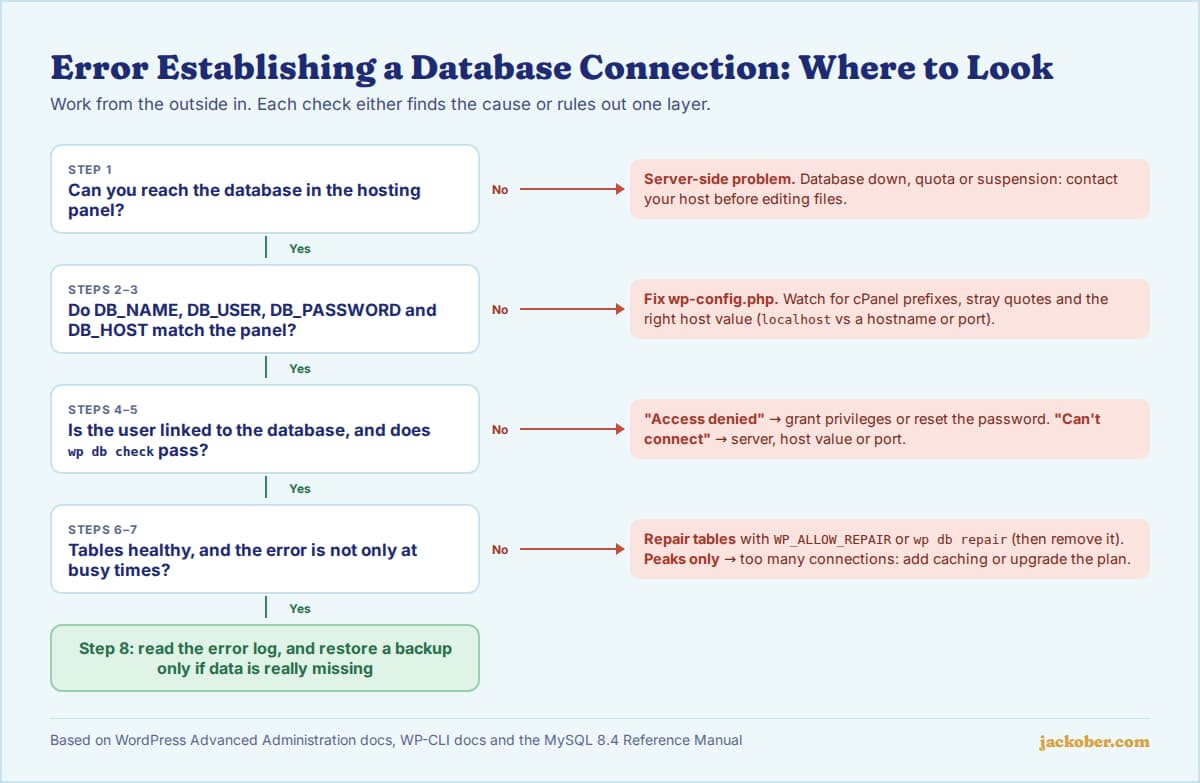
Step by Step: How to Fix It
Step 1: Check whether the whole server is down
Open your hosting panel and try phpMyAdmin or the database tool. If you cannot reach the database there either, or your host’s status page shows an incident, the problem is on the server side and you should contact support before changing any files. On shared hosting, other sites on the same account failing at the same time is a strong hint.
Step 2: Verify the credentials in wp-config.php
Download wp-config.php over SFTP or open it in the file manager, and compare these four lines with the values in your hosting panel. The wp-config.php documentation explains each constant.
define( 'DB_NAME', 'database_name_here' );
define( 'DB_USER', 'username_here' );
define( 'DB_PASSWORD', 'password_here' );
define( 'DB_HOST', 'localhost' );
Watch for small mistakes: a missing quote, an extra space, a prefix that cPanel adds to database and user names, or a password with a character that broke the line. If you are not sure of the password, reset the database user’s password in the panel and paste the new one into the file. After a host move, our WordPress migration guide lists the other settings to recheck.
Step 3: Confirm the database host value
DB_HOST is localhost on most shared hosts, but managed and cloud hosts often use a separate hostname or a port such as 127.0.0.1:3306. Your host’s documentation or panel shows the correct value. MySQL’s own connection troubleshooting notes explain why localhost and 127.0.0.1 can behave differently: the first usually uses a socket file, the second a TCP connection.
Step 4: Check the database user’s privileges
In cPanel, open MySQL Databases and make sure the user is added to the database with all privileges. Creating a user and a database is not enough on its own; the two must be linked. This is a common cause right after a fresh install or a move to a new host.
Step 5: Test the connection outside WordPress
With SSH access, WP-CLI reads the same credentials and gives a clearer error message. Run wp db check from the WordPress folder. An “Access denied” message points back to steps 2 to 4, while “Can’t connect” means the server, host value or port is wrong, as described in the MySQL connection troubleshooting guide.
Step 6: Repair corrupted tables
If WordPress connects but reports that tables need repair, or the admin area shows a different database error, try the repair tool. WordPress includes one that you enable by adding this line to wp-config.php, as documented in Editing wp-config.php:
define( 'WP_ALLOW_REPAIR', true );Then visit https://example.com/wp-admin/maint/repair.php and choose Repair Database. The page works without logging in, so remove the line as soon as you are finished. From the command line, wp db repair does the same job. Repair fixes damaged tables but does not bring back deleted data.
Step 7: Look at connection limits and traffic
If the error appears only at busy times, the database may be running out of connections. MySQL returns “Too many connections” when every slot set by max_connections is in use, as the MySQL manual explains. On shared hosting you cannot change this yourself, but you can reduce load with page caching, by blocking abusive bots, and by asking your host whether you are hitting a per-account limit. If it keeps happening, compare plans in our guide to shared hosting vs VPS vs dedicated servers.
Step 8: Read the error log and restore if needed
Your host’s PHP error log, or the WordPress debug log described in Debugging in WordPress, often names the exact problem. If tables are missing or the database was wiped, restore the most recent good backup. If the credentials were changed without your knowledge, treat it as a possible security incident and work through our WordPress security checklist.
Quick Diagnosis Table
| If you see this | Then check this first |
|---|---|
| Error right after moving hosts | Database name, user and host in wp-config.php (steps 2 and 3) |
| Error right after a fresh install | User privileges on the database (step 4) |
wp db check says “Access denied” | Username, password and privileges (steps 2 and 4) |
wp db check says “Can’t connect” | Server status, host value and port (steps 1 and 3) |
| Error only during traffic spikes | Connection limits and caching (step 7) |
| Admin says one or more tables need repair | Repair tool (step 6) |
Common Mistakes
- Editing
wp-config.phpwithout keeping a copy of the working file. - Forgetting the account prefix that cPanel adds, for example
user_wpdbinstead ofwpdb. - Leaving
WP_ALLOW_REPAIRenabled after use, which lets anyone open the repair page. - Restoring an old backup before checking the credentials, which can overwrite newer content for no reason.
- Reinstalling WordPress core to fix the error. Core files are rarely the cause, and the database settings live in
wp-config.php. - Ignoring a recurring error. If it keeps coming back under load, the hosting plan or caching setup needs attention.
Frequently Asked Questions
Will I lose my content because of this error?
Usually not. In most cases the data is still in the database and WordPress simply cannot reach it. Content is only lost if the database itself was deleted or badly damaged, which is why regular backups matter.
Why does the admin area show a different message from the front end?
WordPress sometimes shows “One or more database tables are unavailable” in the admin when it can connect but tables are damaged. That points to the repair tool rather than the login details.
Can a plugin cause this error?
Rarely. A plugin can overload the database with heavy queries, which may contribute to connection limits being reached, but the error itself comes from WordPress failing to connect before plugins have much to do.
Is it safe to change DB_HOST from localhost to 127.0.0.1?
It is a reasonable test, especially on local development setups, but use the value your host documents for production. Change one setting at a time so you know which one fixed the problem.
How do I stop it from happening again?
Keep regular off-site backups, use caching to reduce database load, keep the database tidy, and choose hosting with enough resources for your traffic. Monitoring that alerts you when the site goes down also shortens outages.
The Bottom Line
Work from the outside in: confirm the database server is up, check the four connection details in wp-config.php, make sure the user has privileges, then repair tables if needed. Most cases end at step 2. To be ready for the rare case that needs a restore, set up regular WordPress backups now, and see our list of fixes for common WordPress issues for other errors.
Sources & Further Reading
- WordPress Advanced Administration: Common WordPress errors
- WordPress Advanced Administration: Editing wp-config.php
- WordPress Advanced Administration: Debugging in WordPress
- WP-CLI: wp db
- WP-CLI: wp db check
- WP-CLI: wp db repair
- MySQL 8.4 Reference Manual: Troubleshooting problems connecting to MySQL
- MySQL 8.4 Reference Manual: Can’t connect to [local] MySQL server
- MySQL 8.4 Reference Manual: Too many connections
Articles are editorially reviewed by Jackober and factual claims are checked against cited sources.