“Fatal error: Allowed memory size of 134217728 bytes exhausted” is PHP telling you that a script asked for more memory than it is allowed to use. In WordPress it usually appears after installing a heavy plugin, uploading a large image, running an import, or opening a busy admin screen, and it can show as a white screen or as the “There has been a critical error” message.
Raising the limit fixes the symptom in many cases, but the number you change, and where you change it, matters. This guide explains the three memory settings involved, how to check which one is in effect, and how to find out what is using the memory in the first place.
The Short Answer
Add define( 'WP_MEMORY_LIMIT', '256M' ); to wp-config.php above the “That’s all, stop editing” line. WordPress uses this value for the front end; its default is 40 MB on a single site and 64 MB on multisite, according to the wp-config.php documentation. The admin area uses WP_MAX_MEMORY_LIMIT, which defaults to 256 MB.
WordPress can only raise memory up to what the server allows. If the error continues, the PHP memory_limit set by your host is the real ceiling, and you raise it in php.ini, .user.ini, the hosting panel, or by asking support. If the error returns even at a high limit, a plugin, theme or task is using too much memory and needs to be found.
The Three Memory Settings Explained
Most confusion comes from mixing up three different settings. Two belong to WordPress and one belongs to PHP itself.
| Setting | Where it is set | Default | What it controls |
|---|---|---|---|
memory_limit | PHP (php.ini, .user.ini, host panel) | 128M in the PHP manual, often changed by hosts | The hard ceiling for any PHP script |
WP_MEMORY_LIMIT | wp-config.php | 40M (64M on multisite) | Memory WordPress requests for front-end page loads |
WP_MAX_MEMORY_LIMIT | wp-config.php | 256M | Memory WordPress requests in the admin and for some heavy tasks |
WordPress only ever raises the PHP limit, never lowers it. If php.ini already allows 512M, setting WP_MEMORY_LIMIT to 256M changes nothing, as the PHP optimization documentation notes. In the admin, WordPress uses 256M or the original PHP value, whichever is higher, as described for the admin_memory_limit filter.

Step by Step: How to Fix the Error
Step 1: Read the error message
The message tells you two things: the current limit and the file that hit it. 134217728 bytes is 128 MB, 268435456 bytes is 256 MB. The file path often points to the plugin or theme that was running. If you only see a critical error screen, check the recovery mode email WordPress sends to the admin address, or enable the debug log as described below.
Step 2: Check the limit that is actually in effect
Go to Tools › Site Health › Info. The Server section shows the PHP memory limit, and the WordPress Constants section shows WP_MEMORY_LIMIT and WP_MAX_MEMORY_LIMIT. Compare these with the number in the error. If the error limit matches the PHP value, the server is the ceiling.
Step 3: Raise the WordPress limits
Edit wp-config.php and add these lines above the “That’s all, stop editing” comment. The admin constant has to be defined before wp-settings.php is loaded, as the documentation explains, which is why it belongs here and not in a plugin.
define( 'WP_MEMORY_LIMIT', '256M' );
define( 'WP_MAX_MEMORY_LIMIT', '512M' );
256M on the front end is enough for almost every site. Keep WP_MEMORY_LIMIT less than or equal to WP_MAX_MEMORY_LIMIT, and reload the page that failed.
Step 4: Raise the PHP limit if WordPress cannot
If Site Health still shows a lower PHP limit, change it at the server level. The method depends on how PHP runs on your host, as the PHP manual’s page on changing configuration settings explains:
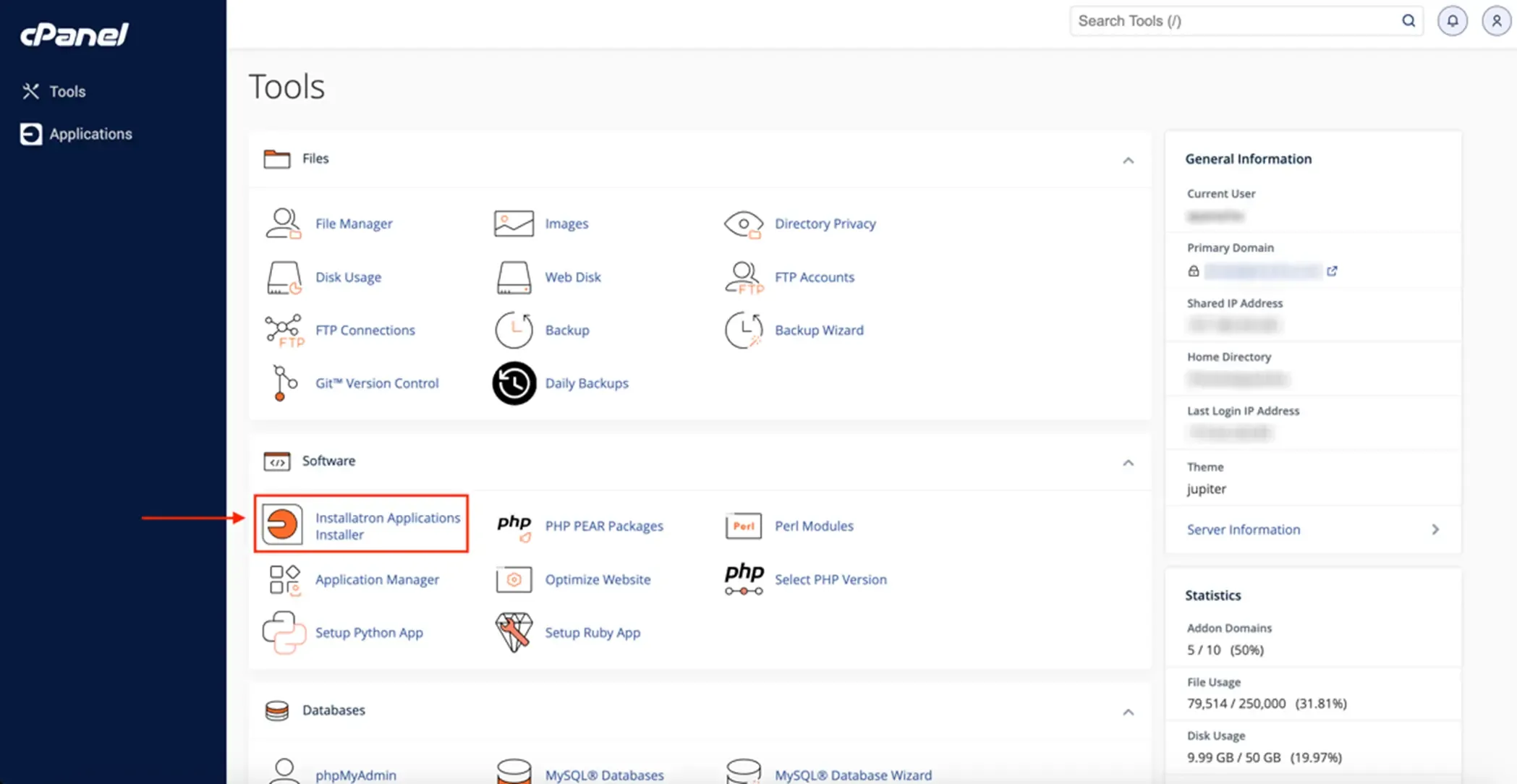
- Hosting panel: cPanel’s MultiPHP INI Editor or a similar tool in other panels usually has a
memory_limitfield. This is the safest option. - .user.ini: on PHP-FPM or FastCGI hosting, a
.user.inifile in the site root withmemory_limit = 256Mworks. PHP re-reads it every few minutes, so changes are not always instant. - php.ini: on a VPS you control, edit the PHP-FPM
php.iniand restart the PHP service. - .htaccess:
php_value memory_limit 256Monly works when PHP runs as an Apache module. On other setups it can cause a 500 error, so remove it if that happens.
If none of these are allowed on your plan, ask your host to raise the limit. Some shared plans cap memory, and that cap cannot be bypassed from WordPress.
Step 5: Find what is using the memory
A site that needs more than 256M on the front end usually has a specific cause. Use the plugin conflict method: deactivate plugins, confirm the error is gone, then reactivate them one at a time. Enable the debug log described in our white screen of death guide to capture the exact file. Common culprits are page builders on very long pages, import and export tools, backup plugins, security scanners, related-post queries and image processing of very large uploads.
Step 6: Fix the cause, not just the limit
Once you know the culprit, reduce its load: process imports in smaller batches, resize huge images before upload (see how to optimize images for WordPress), replace a heavy plugin with a lighter one, or clean up bloated options and revisions with our database optimization guide. Running a current PHP version also helps, since newer versions are generally more efficient; our guide to updating the PHP version in WordPress shows how to do it safely.
Quick Diagnosis Table
| If you see this | Then |
|---|---|
| Error limit is 40 MB or 64 MB | Raise WP_MEMORY_LIMIT in wp-config.php (step 3) |
| Error limit matches the PHP value in Site Health | Raise PHP memory_limit at the server (step 4) |
| Error only in the admin or during uploads | Raise WP_MAX_MEMORY_LIMIT (step 3) and check image sizes (step 6) |
| Error continues at 512 MB or more | Look for a runaway plugin, theme or loop (step 5) |
| .htaccess change caused a 500 error | Remove the php_value line and use the panel or .user.ini (step 4) |
| Error mentions a plugin file | Deactivate that plugin first and test (step 5) |
Common Mistakes
- Setting
memory_limitto-1(unlimited). It hides the problem and lets one bad request use all of the server’s memory. - Adding the constants below the “stop editing” line or after
wp-settings.phpis loaded, where they have no effect. - Writing
256MBor256instead of256M. PHP expects shorthand such asMorG. - Expecting
WP_MEMORY_LIMITto override a lower server limit. WordPress cannot go above what PHP allows. - Raising the limit and moving on while a plugin keeps leaking memory, which brings the error back under traffic.
- Confusing this with a database error. If the site says it cannot connect to the database, see our guide to error establishing a database connection instead.
Frequently Asked Questions
How much memory does WordPress need?
The defaults work for small sites, but most modern sites with a page builder, WooCommerce or several plugins are comfortable at 256M. If a site needs much more than that on normal page views, something is using memory inefficiently.
Is it safe to increase the PHP memory limit?
Yes, within reason. The limit is a per-request cap, not memory that is reserved. The risk is that a very high limit lets a faulty request use far more of the server than it should, which matters most on shared hosting.
Why does the error mention a core WordPress file?
The file named is the one that happened to ask for memory when the limit was reached. It is often not the cause. Look at what was running at the time, such as a plugin action, an import or an image upload.
Does WordPress raise the memory limit by itself?
For certain tasks, yes. Core calls wp_raise_memory_limit() in contexts such as the admin, image editing and cron, using WP_MAX_MEMORY_LIMIT as the target. It still cannot exceed what your host allows.
Why do I get an email about a fatal error?
Since WordPress 5.2, a fatal error triggers an email to the admin address with a recovery mode link, as described in the core announcement. Recovery mode pauses the plugin or theme that caused the error for your session so you can log in and fix it.
The Bottom Line
Check Site Health to see which limit is really in effect, raise WP_MEMORY_LIMIT to 256M in wp-config.php, and raise the PHP limit with your host if that is the ceiling. If the error keeps coming back at generous limits, treat it as a symptom and track down the plugin, theme or task that is using too much memory.
Sources & Further Reading
- WordPress Advanced Administration: Common WordPress errors
- WordPress Advanced Administration: Editing wp-config.php
- WordPress Advanced Administration: PHP optimization
- WordPress Code Reference: admin_memory_limit filter
- WordPress Code Reference: wp_raise_memory_limit()
- Make WordPress Core: Fatal error recovery mode in 5.2
- PHP Manual: Description of core php.ini directives (memory_limit)
- PHP Manual: .user.ini files
- PHP Manual: How to change configuration settings
Articles are editorially reviewed by Jackober and factual claims are checked against cited sources.