
Updating the PHP version behind your WordPress site is one of the few changes that can improve security and speed at the same time, without touching your design or content. It is also one of the few changes that can take a site offline in seconds if an old plugin is not ready for it.
This guide explains which PHP version WordPress supports in 2026, how to check what you are running, and how to switch versions with a tested rollback plan.
The Short Answer
WordPress officially recommends PHP 8.3 or greater, and every current release (6.9, 7.0 and 7.1) is documented as compatible with PHP 7.4 through 8.5. Since WordPress 7.0, the absolute minimum is PHP 7.4.
To update safely: check your current version in Tools > Site Health > Info > Server, take a full backup, update WordPress core, plugins and themes, test the new PHP version on a staging copy, then switch the live site in your hosting panel (for example cPanel’s MultiPHP Manager). Watch the error log for 24 hours and keep the old version available as a one-click rollback.
Which PHP Version Should WordPress Use in 2026?
Two calendars matter here: the PHP project’s own support schedule, and WordPress’s compatibility list. A version can be “compatible” with WordPress and still be unsafe because PHP itself no longer ships security fixes for it.
| PHP version | PHP security support ends | Status (October 2026) | Recommendation |
|---|---|---|---|
| 7.4, 8.0 | Already ended | End of life | Upgrade now |
| 8.1 | 31 December 2025 | End of life | Upgrade now |
| 8.2 | 31 December 2026 | Security fixes only | Plan the upgrade before the end of the year |
| 8.3 | 31 December 2027 | Supported | Safe target; WordPress.org’s minimum recommendation |
| 8.4 | 31 December 2028 | Supported | Good target for most sites |
| 8.5 | 31 December 2029 | Supported (newest) | Fine if all your plugins confirm support |
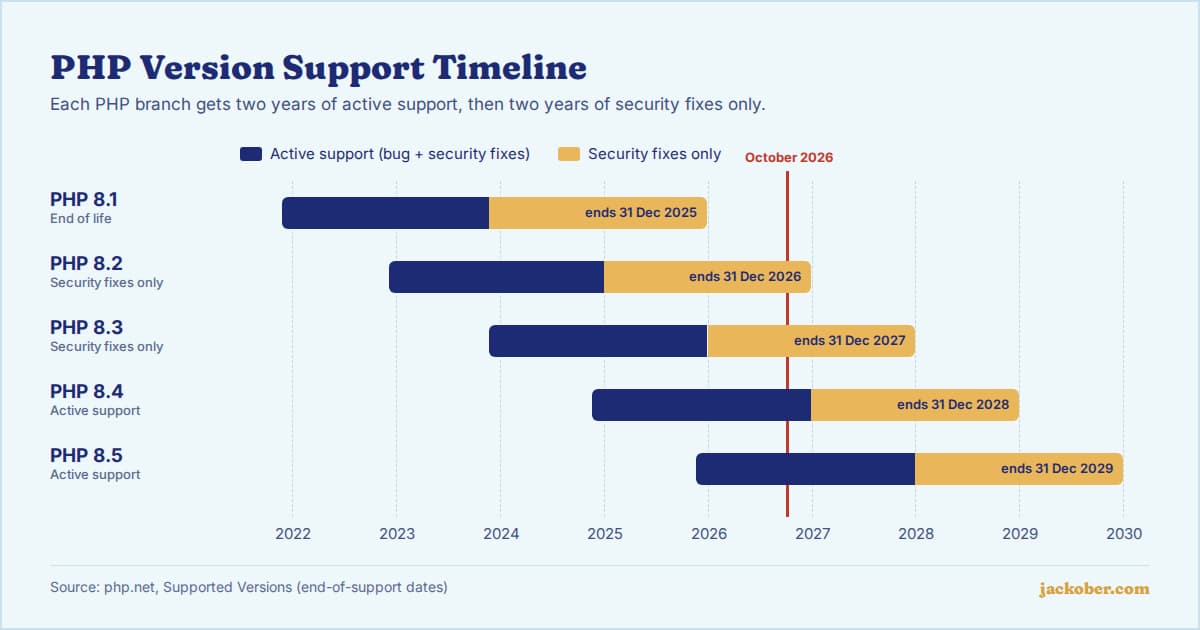
In practice, 8.3 is the conservative choice and 8.4 is the sensible default if your plugins support it. One more change worth knowing: in May 2026 the core team retired the “beta support” label for newer PHP versions. WordPress 6.8 and later now fully support PHP 8.4, and 6.9 and later fully support PHP 8.5. The remaining risk is your plugins and theme, not WordPress core.
How to Check Your Current PHP Version
You do not need server access to find out which version you are running. Use any of these:
- Site Health: in the dashboard, go to Tools > Site Health > Info and open the Server section. It lists the PHP version, memory limit and key extensions.
- Hosting panel: cPanel, Plesk and most custom panels show the active PHP version per domain.
- Command line: if you have SSH access and WP-CLI, run
wp --info. Note that the command-line PHP can differ from the version your web server uses, so trust Site Health for the website itself.
How to Update PHP in WordPress, Step by Step
PHP is not updated from inside WordPress. It is a server setting, so the switch happens in your hosting account. The steps below keep the risk low.
1. Take a full backup
Back up both the files and the database, and store a copy off the server. If you do not have a routine yet, our guide to backing up a WordPress site covers plugin and host-level options.
2. Update WordPress, plugins and themes first
Most PHP incompatibilities are fixed in newer plugin releases. Update everything on your current PHP version before changing it, so you are not debugging two changes at once. While you are there, look for plugins that have not been updated in two years or more; they are the most likely to break.
3. Test on a staging copy
Many hosts offer one-click staging; otherwise, see our comparison of WordPress staging plugins. Switch the staging site to the target PHP version and click through the pages that matter: home page, a post, contact forms, checkout, login and the admin screens you use daily.
On staging only, turn on logging in wp-config.php so warnings are recorded instead of shown to visitors. The settings below follow the official Debugging in WordPress documentation, which advises against using debug mode on live sites.
define( 'WP_DEBUG', true );
define( 'WP_DEBUG_LOG', true );
define( 'WP_DEBUG_DISPLAY', false );
Errors then go to wp-content/debug.log. Look for “Fatal error” and “Deprecated” lines that name a plugin or theme folder.
4. Optional: scan custom code
If your site runs a custom theme or in-house plugins, a developer can scan them with PHPCompatibilityWP, a PHP_CodeSniffer ruleset built to check WordPress code against specific PHP versions without false positives from core functions. A static scan is a helpful first pass, but it does not replace testing the site.
5. Switch the live site
In cPanel, open MultiPHP Manager under Software, tick your domain, choose the new version and click Apply, as described in InMotion Hosting’s cPanel walkthrough. Make sure you open MultiPHP Manager, not MultiPHP INI Editor, which only changes settings. Plesk and managed WordPress hosts have an equivalent PHP selector per site; if you cannot find it, ask support to change it.
6. Verify and monitor
Confirm the new version in Site Health, clear any page cache, and test the same pages you checked on staging. Keep an eye on your host’s PHP error log for a day, especially around scheduled tasks and checkout.
If Something Breaks: Diagnosis Table
| If you see… | Likely cause | Then do this |
|---|---|---|
| “There has been a critical error on this website” and an email about it | A plugin or theme throws a fatal error on the new PHP version | Use the link in the email to enter Recovery Mode, which pauses the faulty extension, then update or replace it |
| A blank white page and no email | Fatal error before WordPress can send mail | Switch PHP back in the hosting panel, then follow our white screen of death guide on staging |
| Site works, but logs fill with “Deprecated” notices | Code uses features scheduled for removal | Not urgent; report it to the plugin author and keep logging off-screen |
| Only one feature fails (a form, a page builder widget) | A single outdated plugin | Check the plugin’s changelog for PHP support, update it or find an alternative |
| A missing extension error, such as intl or imagick | The new PHP build has fewer extensions enabled | Enable the extension in your panel’s PHP extensions screen or ask your host |
Common Mistakes
- Jumping several versions on the live site. Going from 7.4 straight to 8.5 without staging is the most common way to cause downtime.
- Leaving debug output visible. Showing errors to visitors can leak file paths. Keep
WP_DEBUG_DISPLAYoff and turn debugging off again after testing. - Assuming “it worked” after checking the home page. Forms, carts, cron jobs and admin screens often fail on their own.
- Ignoring the security-only phase. PHP 8.2 still gets security patches until the end of 2026, but no bug fixes; treat it as a deadline, not a destination.
- Forgetting the CLI version. If you run WP-CLI or server cron jobs, update the command-line PHP too.
A current PHP version is one part of a wider routine; our WordPress security best practices guide covers the rest.
FAQ
Can I update PHP from the WordPress dashboard?
No. WordPress can tell you which version you run and warn you when it is outdated, but the version itself is set by your web server, usually through your hosting control panel.
Will updating PHP make my site faster?
Often, yes, especially when moving from PHP 7.x to 8.x, but the gain depends on your theme, plugins and caching. Measure before and after rather than relying on generic benchmarks. For other speed levers, see our page speed optimization guide.
What is the minimum PHP version for WordPress 7.0 and 7.1?
PHP 7.4. WordPress 7.0 dropped support for PHP 7.2 and 7.3 after their combined usage fell below 4% of sites. Running the minimum is not advisable, because PHP 7.4 itself no longer receives security fixes.
Should I choose PHP 8.4 or 8.5?
WordPress core supports both. Choose 8.4 if any important plugin has not yet confirmed 8.5 support; choose 8.5 if everything tests cleanly on staging, since it has the longest support window.
How do I roll back if the update goes wrong?
Select the previous version again in the same hosting screen. The change applies within seconds, and your content is not affected because PHP version changes do not modify the database.
The Bottom Line
If your site still runs PHP 8.1 or older, it is on a version that no longer receives security fixes, and PHP 8.2 joins that list on 31 December 2026. Back up, update your plugins, test on staging, then move to PHP 8.3 or 8.4. Keep the previous version selected as your rollback, and the whole change is low risk.
Sources & Further Reading
- WordPress.org: Requirements
- Make WordPress Core: PHP Compatibility and WordPress Versions
- Make WordPress Core: Dropping support for PHP 7.2 and 7.3
- Make WordPress Core: PHP support clarification, spring 2026 edition
- Make WordPress Hosting: WordPress 7.1 Server Compatibility
- PHP.net: Supported Versions
- WordPress Documentation: Recovery Mode
- WordPress Developer Resources: Debugging in WordPress
- PHPCompatibilityWP on GitHub
- InMotion Hosting: How to Change PHP Version in cPanel
Jackober uses AI tools for research, drafting, and editing. Articles are editorially reviewed and factual claims are checked against cited sources. Last reviewed: October 2026.