
When WordPress breaks, the most useful thing you can have is the actual error message. By default WordPress hides PHP errors, warnings and notices, which is right for visitors but leaves you guessing when a plugin update causes a white screen or a feature quietly stops working.
WP_DEBUG and its companion constants turn that information back on. This guide shows how to enable debug mode safely, where the log file goes, what each related constant does, and how to avoid exposing errors on a live site.
The Short Answer
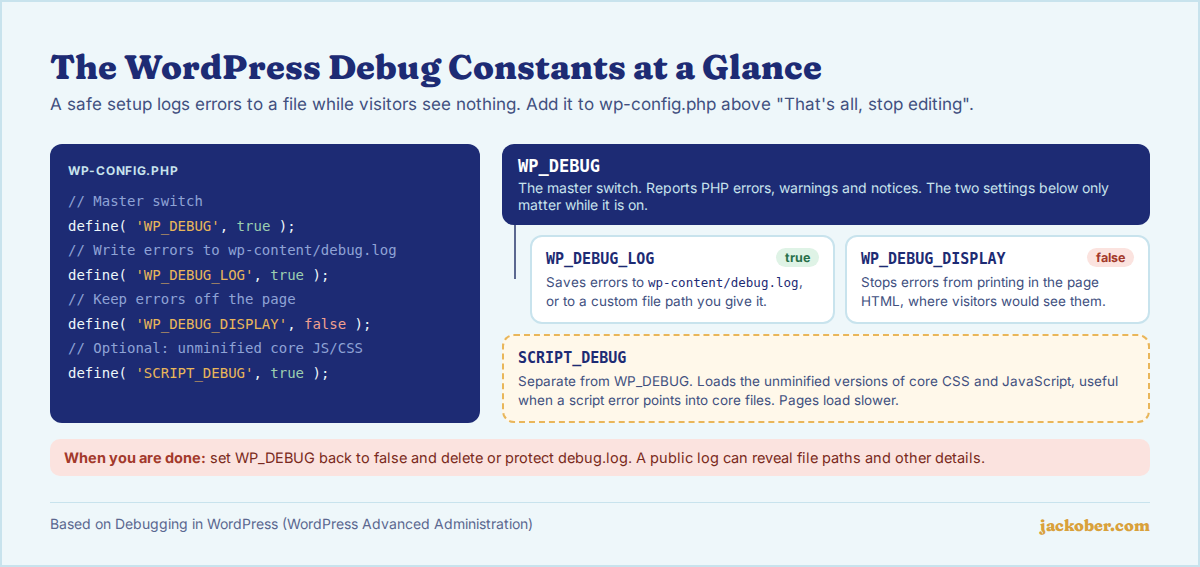
Add WP_DEBUG, WP_DEBUG_LOG and WP_DEBUG_DISPLAY to wp-config.php above the “That’s all, stop editing” line. With WP_DEBUG_LOG set to true, errors are written to wp-content/debug.log, and with WP_DEBUG_DISPLAY set to false, they stay off the screen, as the Debugging in WordPress documentation describes.
Reproduce the problem, read the log, fix the cause, then turn debugging off again. The WordPress documentation does not recommend debug tools on live sites, and a public debug.log can leak file paths and other sensitive details. Where possible, debug on a staging copy instead, using one of the WordPress staging plugins we compared.
The Debug Constants Explained
| Constant | What it does | Use on a live site? |
|---|---|---|
WP_DEBUG | Turns on debug mode and reports all PHP errors, warnings and notices | Only briefly, with display off |
WP_DEBUG_LOG | Saves errors to wp-content/debug.log, or to a path you give it | Only briefly, with a protected path |
WP_DEBUG_DISPLAY | Shows errors in the page HTML (default true when WP_DEBUG is on) | No; set to false |
SCRIPT_DEBUG | Loads unminified core CSS and JavaScript | Rarely; slower pages |
SAVEQUERIES | Stores every database query with its time and caller | No; affects performance |
WP_DISABLE_FATAL_ERROR_HANDLER | Turns off recovery mode so fatal errors show directly | Development only |
WP_ENVIRONMENT_TYPE | Labels the site as local, development, staging or production | Yes, set to production |
WP_DEBUG_LOG and WP_DEBUG_DISPLAY do nothing unless WP_DEBUG is true. The wp-config.php documentation lists all of these constants.
Step by Step: How to Enable WordPress Debug Mode
Step 1: Back up wp-config.php
Download a copy of wp-config.php over SFTP or your hosting file manager before editing it. A typo in this file can take the site down, and having the original makes it a 10-second fix.
Step 2: Add the debug constants
Open wp-config.php and look for an existing define( 'WP_DEBUG', false ); line. Replace it, or add the block below if it is missing, above the “That’s all, stop editing” comment:
define( 'WP_DEBUG', true );
define( 'WP_DEBUG_LOG', true );
define( 'WP_DEBUG_DISPLAY', false );
@ini_set( 'display_errors', 0 );
This combination logs every error but shows nothing to visitors. The ini_set line makes sure PHP itself does not print errors either.
Step 3: Reproduce the problem
Load the page, submit the form or run the action that fails. Errors from background tasks such as AJAX requests and WP-Cron are logged too, which is one of the main reasons to log rather than display them.
Step 4: Read debug.log
Open wp-content/debug.log. Each line has a timestamp, the error type and the file and line number. Focus on Fatal error and Warning lines first, and look at the path: wp-content/plugins/plugin-name/ or wp-content/themes/theme-name/ tells you which extension is responsible. Deprecation notices are worth noting but rarely the cause of a breakdown.
Step 5: Keep the log private
On many servers anyone who knows the URL can open /wp-content/debug.log. The WordPress documentation recommends placing logs outside the public web root where possible. You can do that by giving WP_DEBUG_LOG a path instead of true:
define( 'WP_DEBUG_LOG', '/home/username/logs/wp-debug.log' );Use a folder that exists and that PHP can write to. If you cannot use a private path, delete the log as soon as you are done.
Step 6: Turn debugging off
When the problem is fixed, set WP_DEBUG back to false (or remove the block), delete debug.log, and clear any cache. Leaving debug mode on fills the log, slows the site slightly and increases the chance of exposing information.
Going Further: Tools for Developers
SCRIPT_DEBUG for JavaScript problems
If a block, the editor or an admin screen fails because of JavaScript, set SCRIPT_DEBUG to true so WordPress loads readable versions of its scripts, then use the browser console as described in Using your browser to diagnose JavaScript errors.
Recovery mode and fatal errors
Since WordPress 5.2, a fatal error triggers recovery mode instead of a raw error. That is helpful on live sites but can hide details during development. Setting WP_DISABLE_FATAL_ERROR_HANDLER to true turns it off; wp_is_fatal_error_handler_enabled() documents the check.
Environment types
Setting WP_ENVIRONMENT_TYPE to local or development tells WordPress and plugins they are not on a live site, and WordPress enables WP_DEBUG automatically for those types, as the core announcement explains. Unset sites are treated as production, according to the function reference. For quick throwaway tests, our WordPress Playground tutorial shows how to run a disposable site in the browser.
Query Monitor and Debug Bar
For performance and query problems, a developer plugin is easier than reading raw logs. Query Monitor shows database queries, PHP errors, hooks, HTTP calls and enqueued assets in the admin toolbar, and the Plugin Handbook describes Debug Bar and its add-ons. Install them on staging or deactivate them when you finish.
Which Setup Should You Use?
| If you are… | Then use |
|---|---|
| Troubleshooting a live site quickly | WP_DEBUG and WP_DEBUG_LOG on, WP_DEBUG_DISPLAY off, private log path, turn off afterwards |
| Working on a local or staging copy | WP_ENVIRONMENT_TYPE set to local or development, display on, fatal error handler off |
| Fixing editor or block errors | SCRIPT_DEBUG plus the browser console |
| Investigating slow pages | Query Monitor, or SAVEQUERIES on staging |
| Seeing a white screen with no access to wp-admin | Debug log via SFTP, as in our white screen guide |
Common Mistakes
- Leaving
WP_DEBUG_DISPLAYon for a live site, so visitors and search engines see raw PHP warnings with server paths. - Forgetting a public
debug.logthat keeps growing for months and exposes file paths and plugin names. - Defining the constants below the “stop editing” line, where WordPress has already loaded and they have no effect.
- Defining
WP_DEBUGtwice. If the file already has aWP_DEBUGline, edit it rather than adding a second one. - Treating every notice as urgent. Deprecation notices after a PHP or WordPress update are signals to update code, not usually the cause of a crash.
- Leaving
SAVEQUERIESor developer plugins running in production, which slows every request.
Frequently Asked Questions
Where is the WordPress debug log?
By default it is wp-content/debug.log. If WP_DEBUG_LOG is set to a file path, the log is written there instead. Some hosts also keep a separate PHP error log in the hosting panel.
Why is debug.log not being created?
Check that WP_DEBUG is also true, that the constants sit above the “stop editing” line, and that PHP can write to wp-content or your custom folder. No file also simply means no errors have occurred since you enabled logging.
Is it safe to enable WP_DEBUG on a live site?
For a short time, with display turned off and the log protected, it is a reasonable way to capture an error you cannot reproduce elsewhere. Turn it off as soon as you have what you need.
Does debug mode slow down WordPress?
Logging adds a little overhead, mostly from writing to the file. SAVEQUERIES and developer plugins add more. None of it is meant to run permanently on a production site.
What should I do with the error once I find it?
If it points to a plugin or theme, update it, check the developer’s support forum, or replace it. If it points to your own code, fix the line named in the log. Errors that appeared after a PHP upgrade often mean an extension is not yet compatible with the new version; see our guide to updating PHP in WordPress.
The Bottom Line
Debug mode turns WordPress guesswork into a specific file and line number. Log errors instead of displaying them, keep the log private, and switch debugging off when you are done. Use a staging copy for anything deeper, and pair the log with our guides to the white screen of death and the allowed memory size error when you know what you are looking at.
Sources & Further Reading
- WordPress Advanced Administration: Debugging in WordPress
- WordPress Advanced Administration: Editing wp-config.php
- WordPress Advanced Administration: Using your browser to diagnose JavaScript errors
- WordPress Code Reference: wp_get_environment_type()
- Make WordPress Core: WordPress environment types
- WordPress Code Reference: wp_is_fatal_error_handler_enabled()
- Plugin Handbook: Debug Bar and add-ons
- WordPress.org Plugins: Query Monitor
Articles are editorially reviewed by Jackober and factual claims are checked against cited sources.