
WordPress Playground lets you run a complete WordPress site in your web browser, with no hosting, no database setup and no local server. It is the quickest way to test a plugin, try a theme or check a PHP version before touching a real site.
This tutorial explains how Playground works, the three ways to configure it, and where its limits are.
The Short Answer
WordPress Playground is an official WordPress project that runs PHP compiled to WebAssembly inside your browser, with SQLite instead of MySQL. Open playground.wordpress.net and you get a working WordPress admin in seconds.
You can configure it with URL parameters (for example ?plugin=, ?theme=, ?php=), with a JSON “Blueprint” for repeatable setups, or from the command line with npx @wp-playground/cli. Sites are temporary by default; save them to browser storage or export a ZIP if you want to keep them. Use Playground for testing and demos, not for hosting a live site.
How Playground Works
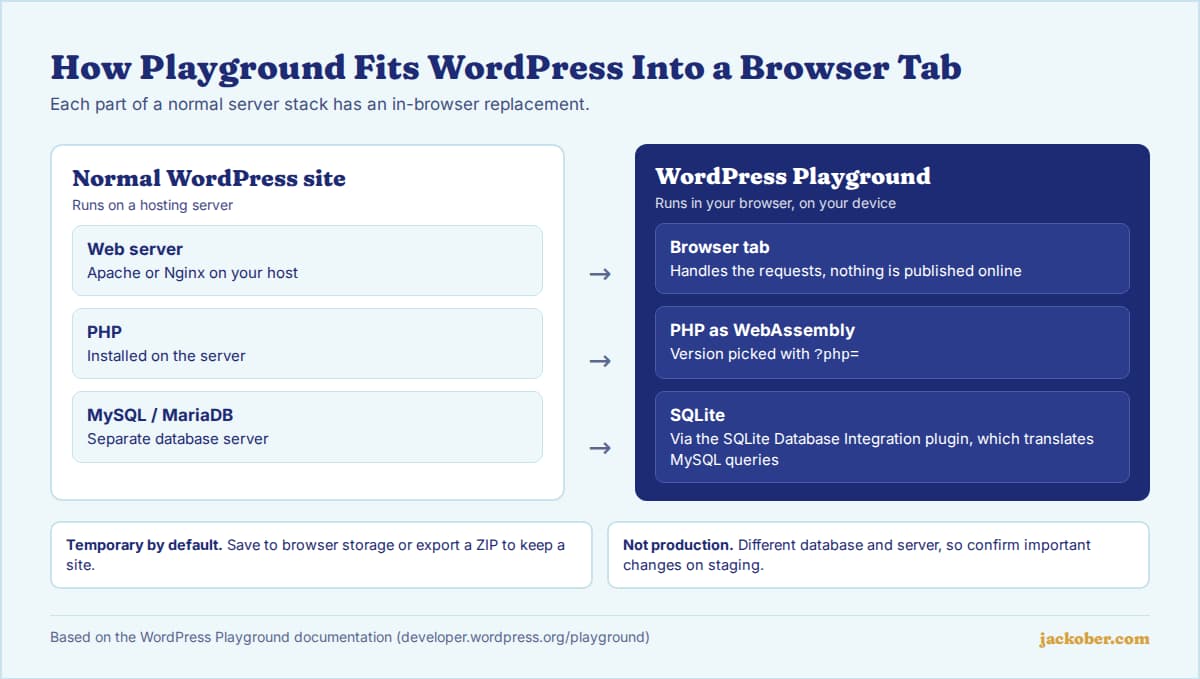
A normal WordPress site needs a web server, PHP and a MySQL or MariaDB database. Playground replaces all three inside the browser tab. PHP runs as WebAssembly, and because there is no WebAssembly build of MySQL, Playground uses SQLite through the SQLite Database Integration plugin, which translates WordPress’s MySQL queries.
Everything happens on your device. Nothing is published to the internet, so you can install and break things freely.
| Goal | How Playground helps | Example |
|---|---|---|
| Test a plugin before installing it on your site | Install it in a throwaway site | ?plugin=wp-crontrol |
| Preview a theme with real admin access | Theme installs and activates automatically | ?theme=twentytwentyfive |
| Check PHP compatibility | Switch PHP versions per session | ?php=8.4 |
| Try a beta or nightly WordPress | Load upcoming versions safely | ?wp=beta |
| Share a reproducible demo or bug report | A Blueprint recreates the same setup for anyone | Blueprint JSON link |
| Develop a plugin or theme locally | The CLI mounts your project folder | npx @wp-playground/cli@latest start |
Quick Start: Test a Plugin in Two Minutes
- Find the plugin’s slug in its WordPress.org URL. For
wordpress.org/plugins/wp-crontrol/, the slug iswp-crontrol. - Open
https://playground.wordpress.net/?plugin=wp-crontrolin your browser. - Wait for WordPress to boot. You are logged in as an administrator with the plugin installed and active.
- Click through the plugin’s settings and the front end, exactly as you would on a real site.
- Close the tab when you are done. Nothing on your real site has changed.
Method 1: The Query API (No Code)
The simplest method is adding parameters to the Playground URL. The Query API documentation lists them all; the most useful are:
plugin: installs a plugin by its WordPress.org slug. Repeat it to install several.theme: installs a theme by its slug.php: sets the PHP version (7.4 through 8.5, orlatest).wp: sets the WordPress version, includinglatest,betaornightly.networking: set toyesto allow the site to make network requests, which is off by default.
For example, this URL starts WordPress with a plugin and a theme on PHP 8.4:
https://playground.wordpress.net/?plugin=wp-crontrol&theme=twentytwentyfive&php=8.4This is a convenient way to test a PHP upgrade before following the steps in our guide to updating PHP in WordPress, as long as your plugins are available on WordPress.org.
Method 2: Blueprints (Repeatable Setups)
A Blueprint is a JSON file that describes a whole site: versions, plugins, themes, settings, content and steps such as logging in. Anyone who opens the Blueprint gets exactly the same site, which makes it ideal for demos, training and bug reports.
{
  "landingPage": "/wp-admin/",
  "preferredVersions": { "php": "8.4", "wp": "latest" },
  "steps": [
    { "step": "login" },
    { "step": "installPlugin",
      "pluginData": { "resource": "wordpress.org/plugins", "slug": "wp-crontrol" } },
    { "step": "installTheme",
      "themeData": { "resource": "wordpress.org/themes", "slug": "twentytwentyfive" } }
  ]
}
The official Blueprint examples show more steps, and the guide on loading and running Blueprints explains how to open one from a URL.
Method 3: The Playground CLI (For Developers)
For local development, the Playground CLI starts a WordPress site from your terminal with no Docker or database. Inside a plugin or theme folder, run:
npx @wp-playground/cli@latest startIt detects the project type, mounts it into WordPress and opens the browser. It requires Node.js 20.18 or newer. The older wp-now package is deprecated in favour of this CLI.
Saving and Exporting Your Work
According to the limitations page, Playground is temporary by design: a refresh can discard your changes unless you save. You have three options:
- Save to browser storage with the Save button. Saved sites appear under “Your Playgrounds”, but the browser may still clear storage under privacy settings or low disk space.
- Save to a local folder in browsers that support the File System Access API.
- Export a ZIP containing files, database, plugins, themes and uploads. This is the most portable backup.
Playground vs Staging vs Local Development
| If you need to… | Use… | Why |
|---|---|---|
| Try a plugin, theme or WordPress version in minutes | Playground | No setup, nothing to clean up |
| Test changes against your real content, plugins and server | A staging copy of your site | Playground does not reproduce your host’s server, MySQL or caching |
| Build a theme or plugin over weeks | Playground CLI or a full local environment | Persistent files and your usual editor |
| Show a client or student a ready-made setup | Playground with a Blueprint | One link recreates the same site |
For tests that must match production, our comparison of WordPress staging plugins covers the alternatives.
Common Mistakes
- Refreshing without saving. Work in an unsaved Playground can disappear on reload.
- Treating a Playground test as proof for production. SQLite, a different server and no object cache mean some issues will only show up on your host.
- Expecting external services to work. Networking is off by default, so licence checks, APIs and remote updates can fail unless you enable it, and some requests remain blocked by the browser.
- Uploading private data. Playground runs locally, but avoid importing real customer data into throwaway test sites anyway.
- Using the deprecated wp-now package. Switch to
@wp-playground/cli.
FAQ
Is WordPress Playground free?
Yes. It is an open-source project run by the WordPress community, and playground.wordpress.net needs no account.
Can I host a real website on Playground?
No. A Playground site lives in your browser and is not reachable by visitors. You can export a ZIP and move it to a host that supports PHP and SQLite, but for a public site you still need normal hosting.
Can I install premium plugins?
You can upload a plugin ZIP through the admin like on any WordPress site, but features that contact a licence server may not work with networking disabled.
What is the “Preview” button on some WordPress.org plugin pages?
It opens that plugin in Playground. Plugin authors enable it by adding a Blueprint to their plugin’s assets, as described in the Plugin Handbook.
Is Playground good for testing themes?
Yes, especially block themes, which you can edit in the Site Editor without risk. If you are deciding between theme types, see our block theme vs classic theme comparison.
The Bottom Line
WordPress Playground is the fastest safe place to try something in WordPress. Use URL parameters for quick tests, Blueprints for setups you want to repeat or share, and the CLI for development. Save or export anything you want to keep, and confirm important changes on a staging copy of your real site before going live.
Sources & Further Reading
- WordPress Developer Blog: Introduction to Playground
- Playground docs: Query API
- Playground docs: Getting started with Blueprints
- Playground docs: Blueprint examples
- Playground docs: How to load and run Blueprints
- Playground docs: Playground CLI
- Playground docs: Limitations
- Playground docs: WordPress support (SQLite)
- Plugin Handbook: Previews and Blueprints
Jackober uses AI tools for research, drafting, and editing. Articles are editorially reviewed and factual claims are checked against cited sources. Last reviewed: October 2026.