
theme.json is the file that tells WordPress which colours, fonts, spacing and layout widths your theme uses, and which design controls the editor should show. In block themes it replaces a large share of the CSS and add_theme_support() calls that classic themes rely on.
This guide explains the structure of theme.json, walks through a practical starter file, and covers the mistakes that most often trip people up.
The Short Answer
theme.json is a JSON configuration file in the root of a WordPress theme. The current format is version 3, introduced in WordPress 6.6. Its two main sections are settings, which define the presets and controls available in the editor, and styles, which apply those presets to the site, to elements such as links and headings, and to individual blocks.
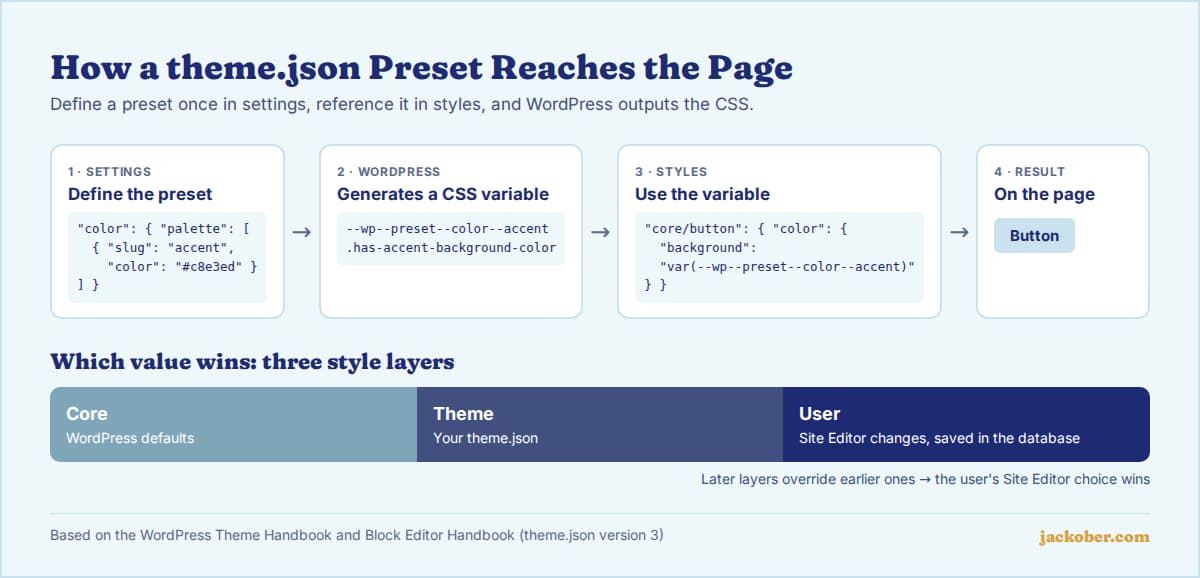
WordPress turns every preset into a CSS custom property, such as --wp--preset--color--primary, and outputs the styles for you. Users can then override them in the Site Editor without touching code. It works in block themes and, with some limits, in classic themes too.
The Structure of theme.json
| Key | What it does | Example use |
|---|---|---|
$schema | Points your code editor to the official schema for autocomplete and validation | https://schemas.wp.org/trunk/theme.json |
version | Tells WordPress which format the file uses | 3 |
settings | Presets and which editor controls are enabled | Colour palette, font sizes, content width |
styles | Applies styles globally, to elements and to blocks | Body text colour, link colour, button style |
customTemplates | Metadata for custom templates in /templates | A “Full width page” template |
templateParts | Metadata for parts in /parts | Marking header.html as the header area |
patterns | Bundles patterns from the WordPress Pattern Directory | A list of pattern slugs |
The official Theme Handbook introduction and the Block Editor Handbook guide document each key in detail.
A Practical Starter theme.json
This minimal file defines a three-colour palette, two font sizes and a layout width, then applies them. It is a starting point you can extend:
{
  "$schema": "https://schemas.wp.org/trunk/theme.json",
  "version": 3,
  "settings": {
    "appearanceTools": true,
    "layout": { "contentSize": "720px", "wideSize": "1200px" },
    "color": {
      "palette": [
        { "slug": "base",     "color": "#ffffff", "name": "Base" },
        { "slug": "contrast", "color": "#1d2b74", "name": "Contrast" },
        { "slug": "accent",   "color": "#c8e3ed", "name": "Accent" }
      ]
    },
    "typography": {
      "fluid": true,
      "fontSizes": [
        { "slug": "medium", "size": "1.125rem", "name": "Medium" },
        { "slug": "large",  "size": "2rem",     "name": "Large" }
      ]
    }
  },
  "styles": {
    "color": {
      "background": "var(--wp--preset--color--base)",
      "text": "var(--wp--preset--color--contrast)"
    },
    "elements": {
      "link": { "color": { "text": "var(--wp--preset--color--contrast)" } },
      "h1": { "typography": { "fontSize": "var(--wp--preset--font-size--large)" } }
    },
    "blocks": {
      "core/button": {
        "color": { "background": "var(--wp--preset--color--accent)" }
      }
    }
  }
}
A few lines deserve explanation. appearanceTools switches on a group of design controls (such as border, spacing and typography options) in one go. The layout sizes set the default and “wide” widths for content. With fluid typography enabled, WordPress generates font sizes with CSS clamp() so they scale with the screen, as the typography settings documentation explains.
How Presets Become CSS
Every preset generates a CSS custom property using the pattern --wp--preset--{feature}--{slug}, as described in the guide to using presets. The palette above produces --wp--preset--color--base, --wp--preset--color--contrast and --wp--preset--color--accent, plus helper classes such as .has-accent-background-color.
Reference these variables in styles rather than hard-coding hex values. If you later change a colour in the palette, every place that uses it updates automatically, and users who pick a different palette in the Site Editor get a consistent result.
| If you want to… | Use… |
|---|---|
| Offer a fixed set of brand colours in the editor | settings.color.palette |
| Stop users picking custom colours | settings.color.custom: false |
| Set the site’s default text and background colour | styles.color |
| Style all links or headings | styles.elements |
| Style one block type everywhere, such as buttons | styles.blocks |
| Turn off a control for one block only | settings.blocks |
| Offer alternative looks for the whole theme | Style variations in /styles |
Style Variations
Style variations are extra JSON files in the theme’s /styles folder that override parts of the main theme.json. A theme can ship full alternative designs, or colour-only and typography-only variations that users mix and match in the Styles panel. Twenty Twenty-Five, for example, ships several of each.
How Theme, User and Core Styles Interact
WordPress merges three layers: its own defaults (core), your theme.json (theme), and changes made in the Site Editor (user). User choices win over the theme, and the theme wins over core. Because the editor manages these origins, WordPress outputs only the style that applies rather than stacking competing CSS rules.
This has a practical consequence: if you edit theme.json and nothing changes on the site, a user-level customisation in the Site Editor is probably overriding it. Check Appearance > Editor > Styles and reset the relevant setting.
Using theme.json in a Classic Theme
Classic themes can add a theme.json file to control the block editor’s colour palette, font sizes and layout widths, which is one of the features that turns a classic theme into a hybrid theme. Be aware that adding the file changes some defaults in the editor, so test carefully. Our comparison of block themes and classic themes explains when a hybrid approach makes sense.
Common Mistakes
- Invalid JSON. A trailing comma or missing quote breaks the whole file. Use the
$schemaline so your editor flags errors. - Mixing version 2 and version 3 syntax. Copying snippets from older tutorials can introduce outdated keys. Check the version 3 reference.
- Hard-coding values in styles. Use preset variables so palette changes apply everywhere.
- Forgetting user overrides. Site Editor changes are stored in the database and take priority over the file.
- Editing a parent theme’s theme.json directly. Updates will overwrite it; use a child theme instead.
To experiment without risk, load a block theme in WordPress Playground and edit its theme.json there.
FAQ
Is theme.json required for a block theme?
No. A block theme only needs an index.html template. Almost all block themes include theme.json because it is the standard way to define design settings, but the WordPress Developer Blog notes that some styling can be done without it.
Can I still use a style.css file?
Yes. Every theme still needs style.css for its header information, and you can add CSS for anything theme.json cannot express. The aim is to move what you can into theme.json so users can adjust it in the editor.
What does appearanceTools do?
It enables a set of design controls at once, such as border, link colour, spacing and line-height options, instead of switching each one on individually.
How do I export my Site Editor changes into theme.json?
The Create Block Theme plugin can save user changes back into the active theme’s files, including theme.json, so they become part of the theme rather than database settings.
Does theme.json work with page builders?
Page builders largely use their own style systems, so theme.json mainly affects content edited with the block editor. Our guide to WordPress page builders covers how they handle global styles.
The Bottom Line
theme.json is the control panel of a modern WordPress theme. Define your presets in settings, apply them through preset variables in styles, and add style variations if you want to offer alternative looks. Keep the file valid with the schema, remember that Site Editor changes override it, and you will need far less custom CSS.
Sources & Further Reading
- Block Editor Handbook: Theme.json Version 3 Reference
- Block Editor Handbook: Global Settings & Styles
- Theme Handbook: Introduction to theme.json
- Theme Handbook: Using Presets
- Theme Handbook: Typography settings
- Theme Handbook: Style Variations
- WordPress Developer Blog: Hybrid themes
- WordPress Developer Blog: You don’t need theme.json for block theme styles
- WordPress Developer Blog: Mastering theme.json
Jackober uses AI tools for research, drafting, and editing. Articles are editorially reviewed and factual claims are checked against cited sources. Last reviewed: October 2026.