
Scheduled posts that show “Missed schedule”, backups that did not run overnight, or WooCommerce emails that go out hours late usually share one cause: WP-Cron, WordPress’s built-in task scheduler, only runs when someone visits the site.
This guide explains how WP-Cron works, when it is good enough, and how to replace it with a real server cron job.
The Short Answer
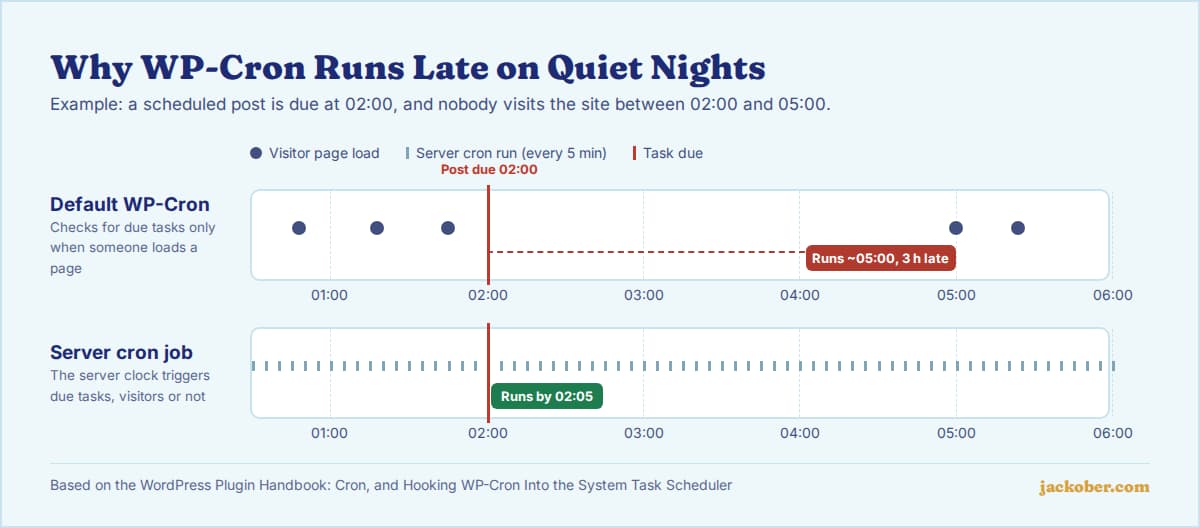
WP-Cron is not a true scheduler. As the Plugin Handbook explains, it checks for due tasks on each page load, so tasks run late on low-traffic sites and add work to page requests on busy ones. A real cron job is scheduled by the server’s operating system and runs at fixed intervals regardless of traffic.
For most production sites, the better setup is to add define( 'DISABLE_WP_CRON', true ); to wp-config.php and create a server cron job that runs WordPress’s due tasks every 5 minutes, either through WP-CLI or by requesting wp-cron.php. Small, low-stakes sites can keep the default.
How WP-Cron Works
WordPress stores a list of scheduled events (publishing a scheduled post, checking for updates, deleting old privacy exports, plugin tasks). On each page load it looks at that list and, if anything is due, sends a background “loopback” request to wp-cron.php on your own site to run it. The WordPress documentation on loopbacks describes this mechanism.
Two consequences follow. If nobody visits between 2:00 and 5:00, a task due at 2:00 runs at 5:00 at the earliest. And if a firewall, security plugin or HTTP authentication blocks the loopback request, scheduled tasks can fail without any visible error.
| Factor | Default WP-Cron | Server cron job |
|---|---|---|
| What triggers it | Visitor page loads | The server clock |
| Timing accuracy | Depends on traffic | Runs at the interval you set |
| Low-traffic sites | Tasks often run late | Reliable |
| Busy sites | Extra checks on many requests | One scheduled run, separate from visitors |
| Setup | None | Hosting panel or SSH access needed |
| Affected by blocked loopbacks | Yes | Not when run with WP-CLI |
| Best for | Small blogs, sites with steady traffic and no time-critical tasks | Stores, membership sites, scheduled publishing, backups |
Do You Need to Switch? A Quick Decision Guide
| If… | Then… |
|---|---|
| Scheduled posts show “Missed schedule” | Switch to a server cron job |
| You run WooCommerce, subscriptions or a membership plugin | Switch; these rely on timely background tasks |
| Site Health reports that a scheduled event has failed | Check loopbacks first, then switch |
| Your host already runs WP-Cron on a schedule (common on managed WordPress hosting) | No change needed; confirm with your host |
| A small blog with steady traffic and no complaints | The default is fine |
How to Replace WP-Cron With a Real Cron Job
1. See what is scheduled
Install WP Crontrol and open Tools > Cron Events. It lists every event, its schedule and when it is next due, and flags events that are overdue. If you have WP-CLI, wp cron event list shows the same.
2. Disable the page-load trigger
Add this line to wp-config.php, above the line that says “That’s all, stop editing!”. The official guide recommends this once a system task is in place, because otherwise WordPress keeps checking on every page load.
define( 'DISABLE_WP_CRON', true );This does not stop scheduled tasks; it only stops visitors from triggering them. Do steps 2 and 3 together so nothing is left without a trigger.
3. Create the server cron job
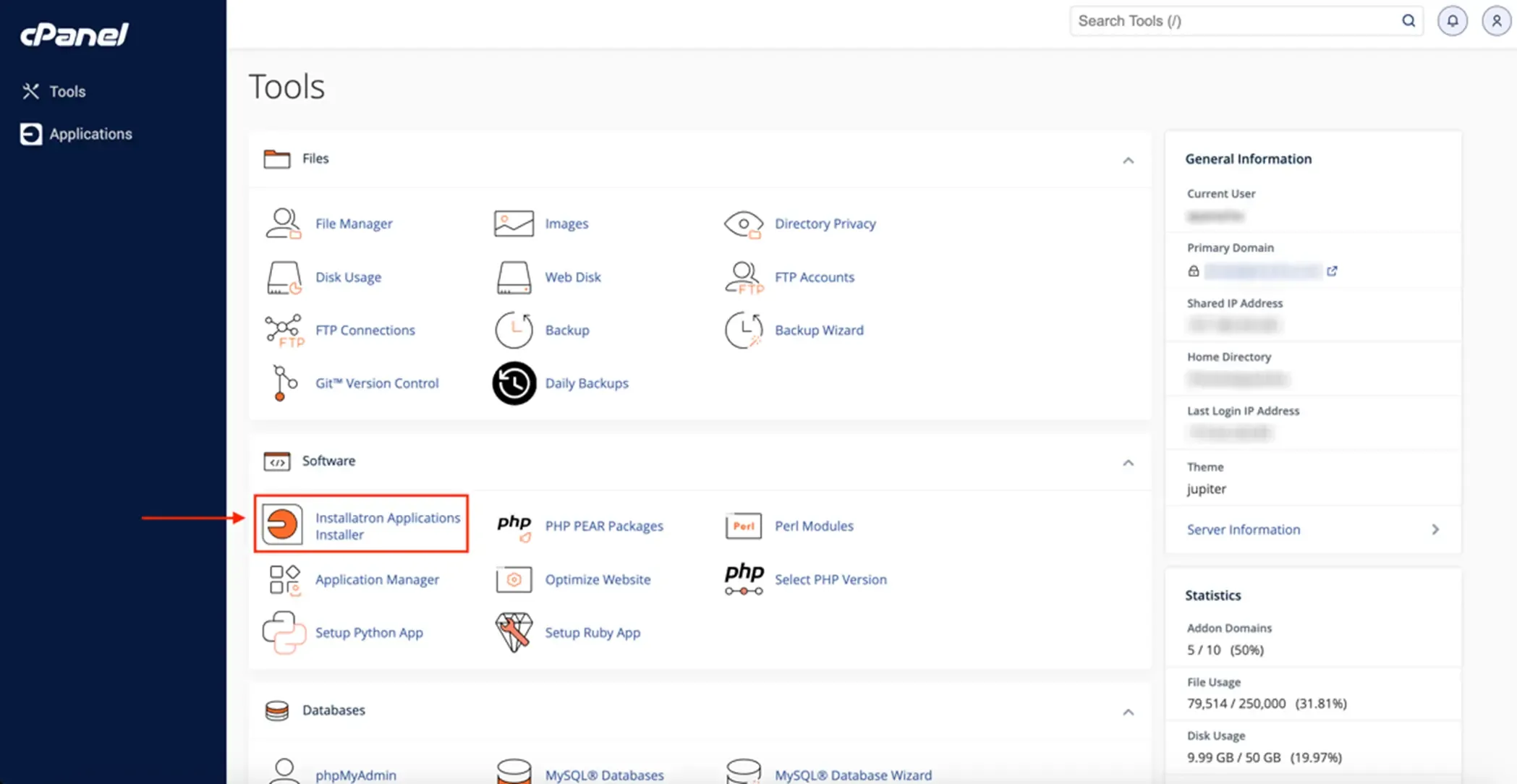
In cPanel, open Cron Jobs under Advanced, choose an interval of every 5 minutes, and enter one of the commands below. On a VPS, add the same line with crontab -e.
Option A, WP-CLI (preferred when available). It runs due events directly in PHP using wp cron event run –due-now, with no HTTP request, so firewalls and loopback problems do not matter:
*/5 * * * * wp cron event run --due-now --path=/home/USER/public_html --quietOption B, a web request. If WP-CLI is not installed, request wp-cron.php as the Plugin Handbook shows:
*/5 * * * * wget -q -O - https://example.com/wp-cron.php?doing_wp_cron >/dev/null 2>&1Replace the path or domain with your own. Every 5 minutes is a sensible default; every minute is rarely necessary and adds load.
4. Verify it works
Schedule a test post a few minutes ahead and confirm it publishes on time. In WP Crontrol, the “next run” times should keep moving forward and no events should stay overdue. WP-CLI also has wp cron test, which checks whether WP-Cron can be spawned.
WooCommerce and Action Scheduler
WooCommerce and many plugins use Action Scheduler, a job queue for large numbers of background tasks such as subscription renewals and webhooks. It is itself started by WP-Cron, so a reliable server cron also makes these queues run on time. WooCommerce shows the queue under Status > Scheduled Actions; a growing list of past-due actions is a sign that cron is not running reliably.
Common Mistakes
- Disabling WP-Cron without adding a server cron. Scheduled posts, updates and plugin tasks then stop entirely.
- Running the web-request cron against a URL behind HTTP authentication or a firewall rule. The request is blocked and nothing runs. Use WP-CLI or allow the request.
- Using the wrong PHP binary. On servers with several PHP versions, the command-line default may be older than your site’s version. Use the full path your host documents.
- Scheduling every minute “to be safe”. It rarely helps and can overlap long-running tasks on slow servers.
- Leaving orphaned events. Uninstalled plugins sometimes leave scheduled hooks behind; remove them in WP Crontrol after checking what they are.
Orphaned cron data is one of the things a periodic database clean-up can address, and moving tasks off page loads complements our page speed optimization guide.
FAQ
Why do my scheduled posts say “Missed schedule”?
The publish event was due, but WP-Cron did not run in time, usually because there were no visits or because the loopback request was blocked. A server cron job fixes both causes.
Is it safe to set DISABLE_WP_CRON to true?
Yes, as long as a server cron job replaces it. The constant only removes the page-load trigger; the events themselves are unchanged.
Does my hosting provider already handle this?
Some managed WordPress hosts run cron on a schedule for you, others do not. Check your host’s documentation or ask support before adding a second trigger.
What does “A scheduled event has failed” in Site Health mean?
An event did not run when it was due. The site still works, but scheduled posts and automatic updates may not run as intended. Check for blocked loopback requests, then consider a server cron job.
Can I set up a cron job without cPanel?
Yes. On a VPS, use crontab -e. On hosts without cron access, an external monitoring or cron service that requests wp-cron.php on a schedule is a workable fallback.
The Bottom Line
WP-Cron is convenient but depends on traffic and loopback requests. If timing matters, for scheduled posts, stores, memberships or backups, disable the page-load trigger and run due events from a server cron every 5 minutes, preferably with WP-CLI. If you are setting up hosting from scratch, our guide to installing WordPress on cPanel covers the panel where you will add the cron job.
Sources & Further Reading
- Plugin Handbook: Cron
- Plugin Handbook: Hooking WP-Cron Into the System Task Scheduler
- Advanced Administration: Loopbacks
- WP-CLI: wp cron event run
- WP-CLI: wp cron event list
- WP-CLI: wp cron test
- WP Crontrol on WordPress.org
- Action Scheduler documentation
- WooCommerce: Scheduled actions
Jackober uses AI tools for research, drafting, and editing. Articles are editorially reviewed and factual claims are checked against cited sources. Last reviewed: October 2026.