

Originally published: March 31, 2025 · Last reviewed and updated: October 2026
You can create an online store with WordPress by adding a free e-commerce plugin, usually WooCommerce, to a normal WordPress site. You get full control over your products, design, and data, and you don’t pay a platform fee on every sale. In return, you are responsible for hosting, updates, and security.
This guide walks through the whole process in 2026: what to prepare, how to set up WooCommerce, how to add products, payments, shipping and taxes, and what to check before you open the store.
The Short Answer
To create an online store with WordPress:
- Get WordPress hosting that meets WooCommerce’s requirements and includes SSL.
- Install WordPress, then install and activate the free WooCommerce plugin.
- Follow the setup wizard to set your store address, currency, and what you sell.
- Choose a theme that supports WooCommerce, ideally a block theme.
- Add products, then set up payments, shipping, and taxes.
- Add your legal pages, place a few test orders, and launch.
A simple store with a handful of products can be ready in a day or two. Most of the time goes into product photos, descriptions, and testing, not the software.
Before You Start
Decide a few things first, because they affect every later step:
- What you sell. Physical goods need shipping rules. Digital downloads, services, and bookings work differently.
- Where you sell. Selling to other countries brings extra tax rules, currencies, and shipping zones.
- How you get paid. Check which payment providers work in your country and for your type of business.
- Your budget. WooCommerce is free, but hosting, a domain, premium extensions, and payment fees are not.
If you mainly sell downloads, such as e-books or software, a lighter plugin like Easy Digital Downloads can be simpler than WooCommerce. For most stores that ship products, WooCommerce is the standard choice. Our guide to the best e-commerce plugins for WordPress compares the options.
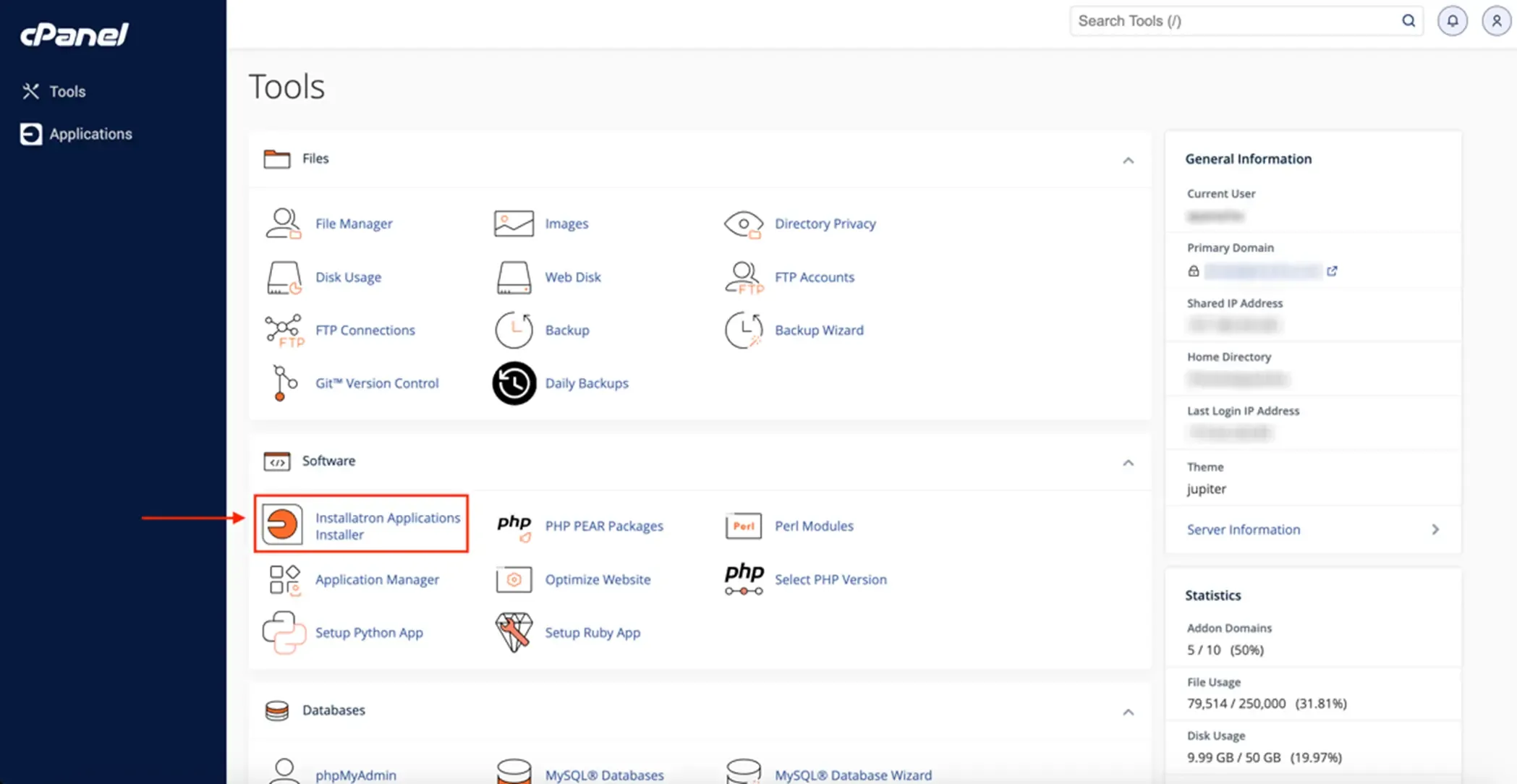
Step 1: Choose Hosting and Install WordPress
An online store needs more from its host than a blog does. Logged-in customers, carts, and checkout pages can’t be served from a simple page cache, so the server does more work on every visit.
WooCommerce’s server recommendations currently list WordPress 6.9 or newer, PHP 8.3 or newer, MySQL 8.0 or MariaDB 10.6 or newer, HTTPS, and a WordPress memory limit of at least 256 MB. WooCommerce has also announced that version 11.6, planned for early 2027, will require PHP 8.1 or newer.
Make sure your store runs on HTTPS from day one. Our guide on how to add SSL to WordPress covers the setup.
Step 2: Install and Set Up WooCommerce
In your dashboard, go to Plugins → Add New, search for WooCommerce, then install and activate it. The setup wizard asks for your store address, industry, product types, and business details, and can suggest extensions. You can skip any suggestion and add it later.
Two changes in recent versions are worth knowing:
- Block-based cart and checkout. New stores use the Cart and Checkout blocks by default. They are easier to edit in the block editor than the older shortcode pages.
- High-Performance Order Storage (HPOS). Since late 2023, new stores store orders in dedicated tables instead of the general posts table, which scales better. Check that any extension you install is compatible with HPOS.
Step 3: Pick a Theme
Your theme controls how product pages, the shop page, and the cart look. Choose a theme that clearly states WooCommerce support, loads quickly, and works on mobile. WooCommerce’s free Storefront theme still works, and many block themes now include shop templates you can edit in the Site Editor. Our comparison of block themes vs classic themes explains the difference.
Step 4: Add Your Products
Go to Products → Add New. WooCommerce supports several product types:
| Product type | Use it for | Example |
|---|---|---|
| Simple | One item with one price | A mug |
| Variable | One product with options such as size or color | A T-shirt in S, M, L |
| Grouped | A set of related products shown together | A skincare set |
| External/Affiliate | A product sold on another site | An affiliate link |
| Virtual or Downloadable | An option on simple products with no shipping | An e-book or a consultation |
For each product, write a clear title and a description that answers real buyer questions. Add the price, SKU, stock level, weight, and dimensions, plus categories and tags. Use several good photos and compress them before uploading; see our guide on how to optimize images for WordPress.
Step 5: Set Up Payments
Under WooCommerce → Settings → Payments, enable at least one payment method. Common choices are WooPayments, Stripe, and PayPal, each through an official extension. Every provider charges its own transaction fees, so compare them for your country and average order size. Our overview of payment gateways for WordPress websites goes into more detail.
Use each provider’s test or sandbox mode first, and only switch to live mode after a test order goes through.
Step 6: Configure Shipping and Taxes
Shipping. Create shipping zones, for example your home country and the rest of the world. Then add methods to each zone: flat rate, free shipping, or local pickup. Product weights and shipping classes let you charge more for heavy or bulky items. If you ship many orders, a tool like ShipStation for WordPress can print labels and sync tracking.
Taxes. Enable taxes in the general settings, then add tax rates for the places where you must collect them. Tax rules differ by country and region, so confirm what applies to you with an accountant or your local tax authority. Automated tax extensions can calculate rates for you.
Step 7: Prepare for Launch
Before you open the store, work through this checklist:
- Add a privacy policy, terms and conditions, a returns and refund policy, and clear contact details.
- Place test orders with every payment and shipping method, including a refund.
- Check that order emails reach both you and the customer. If they don’t, see WordPress not sending emails.
- Set up automatic backups that include the database; see how to back up a WordPress site.
- Test the store on a phone, including the checkout.
- Make sure your caching plugin excludes the cart, checkout, and account pages.
After Launch: Speed, Security, and SEO
Keep WordPress, WooCommerce, the theme, and extensions updated, and test big updates on a staging copy first. Use strong passwords and two-factor authentication for admin accounts; our WordPress security best practices list the essentials.
A slow store loses sales, so follow our page speed optimization guide. For search, give each product a unique description and make sure product structured data is in place. Our guide to schema markup in WordPress explains how.
Common Mistakes
- Choosing the cheapest hosting. A store that slows down at checkout loses orders.
- Installing too many extensions. Each one adds load and another thing to update. Add features only when you need them.
- Copying manufacturer descriptions. Duplicate text gives search engines no reason to rank your page.
- Skipping test orders. Payment, tax, and email problems are much cheaper to find before customers do.
- Caching the cart and checkout. This can show one customer’s cart to another or break checkout.
FAQ
Is WooCommerce free?
Yes. The WooCommerce plugin is free. You pay for hosting, your domain, any premium extensions or themes, and payment processing fees.
How much does it cost to run a WordPress store?
A small store can run on modest hosting with free extensions and a free theme. Costs rise with managed hosting, premium extensions, and paid shipping or tax tools. Payment fees depend on your provider and sales volume.
Can I sell digital products with WordPress?
Yes. Mark products as virtual and downloadable in WooCommerce, or use Easy Digital Downloads if digital products are all you sell.
Do I need coding skills to build a WordPress store?
No. You can set up WooCommerce, add products, and configure payments from the dashboard. Code helps only for custom features or deep design changes.
Can I sell memberships or subscriptions?
Yes, with extra plugins. Our guide on how to create a membership site with WordPress covers the options.
The Bottom Line
Creating an online store with WordPress comes down to solid hosting, WooCommerce, a store-ready theme, well-presented products, and carefully tested payments, shipping, and taxes. Start small with only the extensions you need, test every order path before launch, and keep the store updated and backed up. That gives you a store you fully own and can grow at your own pace.
Sources & Further Reading
- WooCommerce: Server recommendations
- WooCommerce Developer Blog: New requirement for WooCommerce 11.6, PHP 8.1+
- WooCommerce: High-Performance Order Storage platform update
- WooCommerce: Managing products
- WordPress.org: WooCommerce plugin
- WordPress.org: Easy Digital Downloads
Articles are editorially reviewed by Jackober and factual claims are checked against cited sources.




1 comment