
Originally published: April 5, 2025 · Last reviewed and updated: October 2026
cPanel is still one of the most common control panels on shared hosting, and it gives you two ways to install WordPress: a one-click installer such as Softaculous, or a manual install using File Manager and a database you create yourself. Both work well. The one-click route is faster, while the manual route shows you exactly what WordPress needs and helps when something goes wrong.
This guide walks through both methods in 2026, then covers the settings to change straight after installing and the errors you’re most likely to meet.
The Short Answer
| One-click installer (Softaculous) | Manual install | |
|---|---|---|
| Time | A few minutes | 10 to 15 minutes |
| Creates the database for you | Yes | No, you create it in cPanel |
| Writes wp-config.php for you | Yes | Yes, through the WordPress setup screen |
| Best for | Most new sites | Hosts without an installer, or when you want full control |
| Watch out for | The default “wp” install folder, preselected plugins | Database name and user prefixes |
If your host offers Softaculous or a similar installer, use it. Choose the manual method when there is no installer, or when you want to understand and control each step.
Before You Start
You need four things:
- A hosting account with cPanel access. Your host sends the login details when you sign up.
- A domain pointed at that hosting. If the domain is new, DNS changes can take a while to reach everyone. Our guide Does WordPress give you a domain name? explains how domains and hosting fit together.
- A supported PHP and database version. WordPress recommends PHP 8.3 or newer and MySQL 8.0+ or MariaDB 10.11+, and HTTPS support (WordPress requirements). Most cPanel hosts let you choose the PHP version in MultiPHP Manager or Select PHP Version. See how to update the PHP version in WordPress.
- Your site details. A site title, an admin username that isn’t “admin”, a strong password, and an email address you check.

Method 1: Install WordPress With Softaculous
Softaculous is the one-click installer bundled with many cPanel hosts. Some hosts use WP Toolkit or their own installer instead, but the fields are almost the same.
Step 1: Open the installer
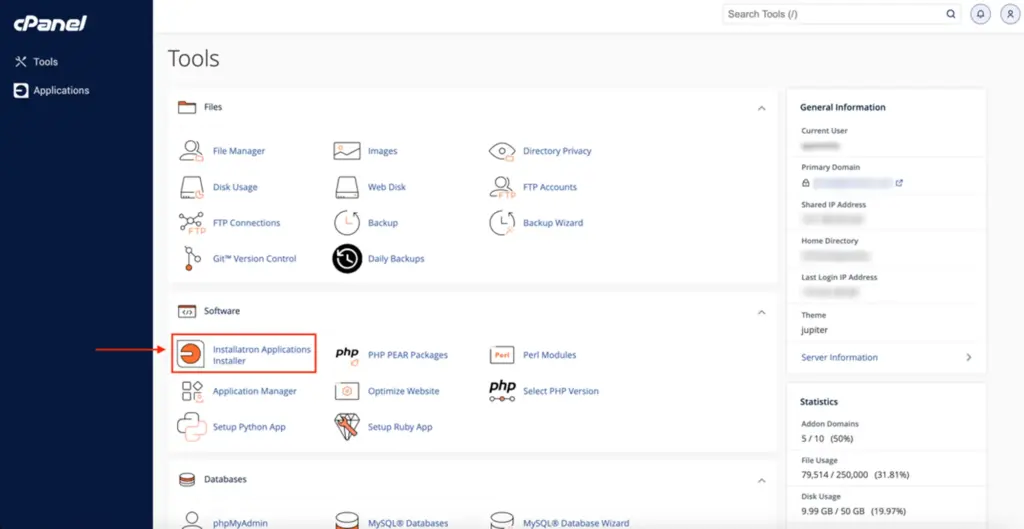
Log in to cPanel and find the Software section. Click Softaculous Apps Installer, or the WordPress Manager by Softaculous icon if your host shows it. You can also type “Softaculous” in the cPanel search box.
Step 2: Choose WordPress and click Install
On the Softaculous home screen, WordPress is usually the first script listed. Click Install (or open WordPress and click Install Now).

Step 3: Fill in the installation settings
The form has a few groups of settings. These are the ones that matter:
- Choose Installation URL. Pick
https://as the protocol if an SSL certificate is already active, then choose your domain. - In Directory. Softaculous often fills in
wp. Leave this empty to install WordPress at the root of your domain (example.com). If you keepwp, the site lives at example.com/wp. - Site Name and Site Description. You can change both later in WordPress.
- Admin Account. Choose a unique username, a strong password, and a real email address. The password reset emails go there.
- Select Language. Pick the language for the dashboard.
- Select Plugin(s). Untick any plugins you don’t want. You can install what you need later.
- Advanced Options. You can set the database name and table prefix, automatic updates, and automatic backups. The defaults are fine for most sites, but turning on automatic minor updates is a good idea.
Step 4: Install and log in
Click Install and wait for the success message. It shows two links: your site and the admin URL (usually example.com/wp-admin). Save the details somewhere safe, then log in.
Method 2: Install WordPress Manually
The manual method uses three cPanel tools: File Manager, the database tools, and the WordPress setup screen in your browser.
Step 1: Create a database and a database user
In cPanel, open Manage My Databases (called MySQL Databases before cPanel version 120) or use the Database Wizard.
- Create a new database. cPanel adds your account name as a prefix, so typing
wpgives a database named something likecpuser_wp. - Create a new database user with a strong password. This user also gets the prefix.
- Add the user to the database and tick ALL PRIVILEGES, then save. The Database Wizard does this step for you.
Write down the full database name, the full username, and the password. You need all three in Step 4.
Step 2: Upload the WordPress files
Download the latest version from wordpress.org/download. In cPanel, open File Manager and go to public_html, the folder for your main domain. An addon domain or subdomain uses its own document root, which cPanel shows on the Domains page.
Upload the ZIP file, right-click it, and choose Extract. The files land in a wordpress folder. Move everything inside that folder up into public_html, then delete the empty folder and the ZIP file.
Step 3: Start the setup
Visit your domain in a browser. WordPress opens its setup screen. Choose a language and continue.
Step 4: Enter the database details
WordPress asks for:
- Database Name: the full name with the prefix, such as
cpuser_wp. - Username: the full database username with the prefix.
- Password: the database user’s password.
- Database Host: usually
localhoston cPanel. Your host will tell you if it’s different. - Table Prefix:
wp_works. Changing it is fine but is not a real security measure.
WordPress uses these details to create wp-config.php for you. If it can’t write the file, it shows the contents so you can create wp-config.php yourself in File Manager.
Step 5: Run the installation
Enter the site title, admin username, password, and email, then click Install WordPress. When it finishes, log in at example.com/wp-admin.
What to Do Right After Installing
- Turn on HTTPS. Most cPanel hosts include free certificates through AutoSSL. Check SSL/TLS Status in cPanel, then make sure WordPress uses
https://in Settings > General. Our guide on how to add SSL to WordPress covers the full process. - Set your permalinks. In Settings > Permalinks, choose Post name so URLs look like example.com/my-post/.
- Check the basics in Settings > General. Set the site title, tagline, time zone, and admin email.
- Remove what you don’t use. Delete sample content, unused themes (keep one default theme as a fallback), and any plugins the installer added that you don’t need.
- Set up backups. Use cPanel’s backup tools or a plugin, and keep one copy off the server. See how to back up a WordPress site.
- Lock down the login. Use a strong password and two-factor authentication. Our WordPress security best practices guide lists the rest.
- Add caching. A cache plugin helps a lot on shared hosting. Compare options in our WordPress cache plugins guide.
Troubleshooting Common Problems
- “Error establishing a database connection.” The database name, user, password, or host in
wp-config.phpis wrong, or the user was never added to the database. Our guide to the database connection error walks through each check. - A blank white page or “critical error”. Usually a plugin, theme, or PHP version problem. Follow our white screen of death guide.
- “Allowed memory size exhausted”. Raise the PHP memory limit, as shown in our memory limit guide.
- Theme or plugin uploads fail. The upload limit is too low. See how to increase the maximum upload file size.
- “Too many redirects” after enabling HTTPS. The site address settings and server redirects disagree. Our guide to ERR_TOO_MANY_REDIRECTS explains the fix.
- The site only works at example.com/wp. WordPress was installed in a subfolder. Reinstall at the root, or follow WordPress’s guide to giving WordPress its own directory.
- The old “Index of /” page or host placeholder still shows. Delete the host’s default
index.htmlfrompublic_html.
Common Mistakes
- Using “admin” as the username. It’s the first name attackers try.
- Forgetting the database prefix.
wpandcpuser_wpare different databases to WordPress. - Leaving the default install folder in Softaculous. Check the In Directory field before you click Install.
- Running an old PHP version. Old versions are slower and no longer get security fixes.
- Never testing a restore. A backup you can’t restore is not a backup.
FAQ
Is Softaculous safe to use?
Yes. It installs the official WordPress files and creates the database for you. Review the plugins it preselects and the install folder before you click Install.
Can I install WordPress on a subdomain or addon domain?
Yes. In Softaculous, choose the subdomain or addon domain in the domain list. For a manual install, upload the files to that domain’s document root instead of public_html.
How long does it take to install WordPress on cPanel?
A one-click install takes a few minutes. A manual install usually takes 10 to 15 minutes, most of it spent creating the database and uploading files.
Do I need to edit wp-config.php by hand?
Usually not. The WordPress setup screen creates it from the details you enter. You only edit it by hand if WordPress can’t write the file or if you need extra settings later.
What if my host doesn’t use cPanel?
The steps are similar on other panels. We cover two alternatives in our guides to aaPanel and CloudPanel. If you run your own server, see installing and configuring cPanel on your server.
The Bottom Line
On most cPanel hosts, Softaculous is the quickest way to install WordPress. Just check the install folder, admin details, and preselected plugins. The manual method takes a little longer but teaches you how WordPress connects to its database, which makes later troubleshooting much easier. Either way, turn on HTTPS, set permalinks, and set up backups before you start publishing.
Sources & Further Reading
- WordPress Developer Resources: How to install WordPress
- WordPress.org: Requirements
- cPanel Docs: Manage My Databases (MySQL Databases)
- cPanel Docs: Database Wizard
Articles are editorially reviewed by Jackober and factual claims are checked against cited sources.